Setting up Anaconda
Anaconda is a software package which, among other things, installs Python and Spyder onto your computer. We recommend having it installed on on your own machine to follow along with programming tasks in lectures and for assignments and labs.
VLAB
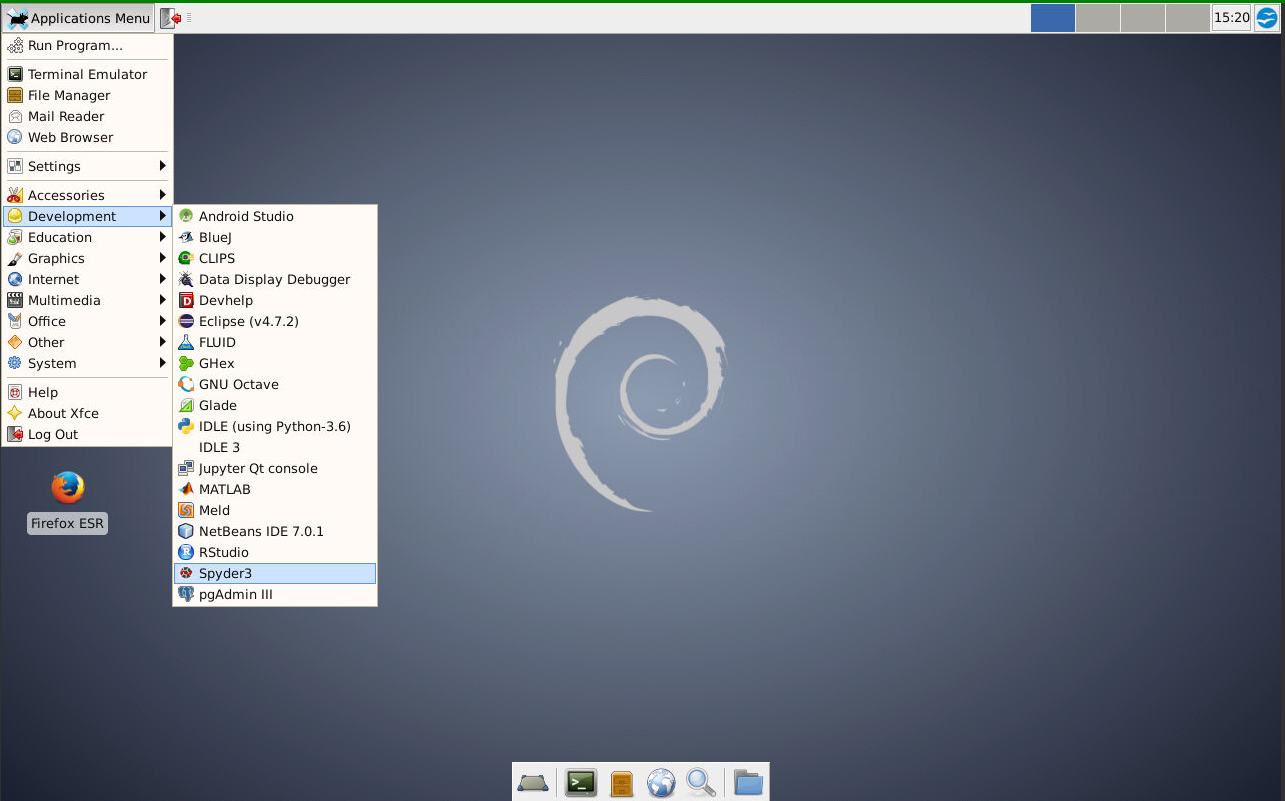
On CSE lab computers, Spyder and Python come pre-installed. You can find Spyder in the application menu, under Development.
Windows
To install Anaconda on Windows, head to the Anaconda downloads page. Registration is mandatory to proceed, so click Get Started.
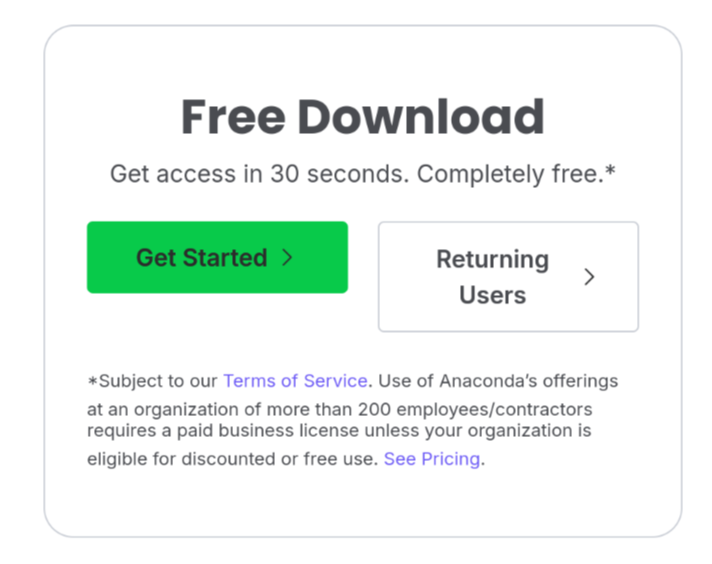
Click Sign Up with Email to create an account. You can use either your UNSW email or personal email.

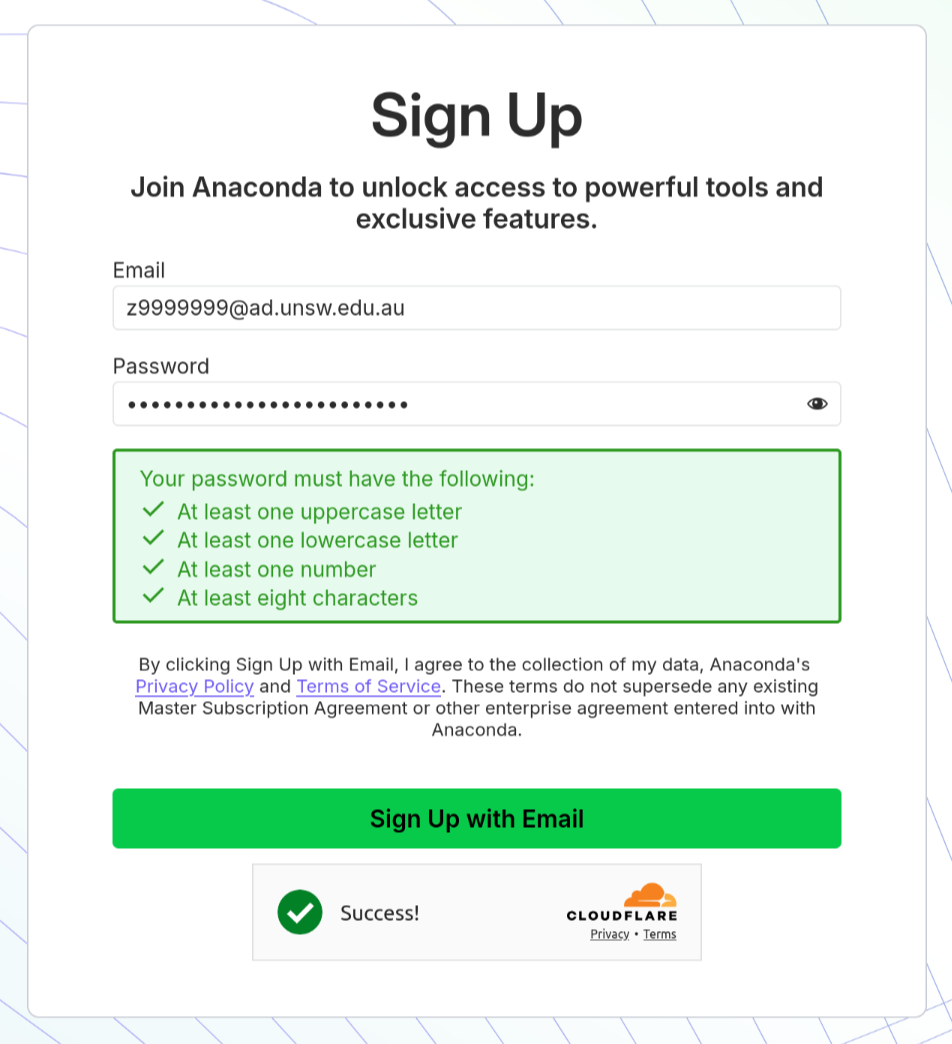
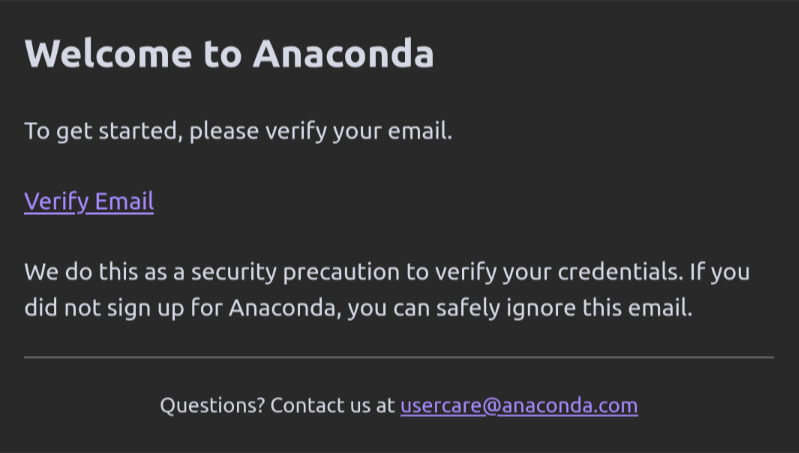
Click Sign Up with Email again. Anaconda will send you an email that contains a verification link. Click on it to verify your account.
Once you do this, you will be asked for your personal details. Enter your first and last name, respond to the EULA prompt and then continue. You may skip any additional prompts by pressing Skip at the bottom right of each box.

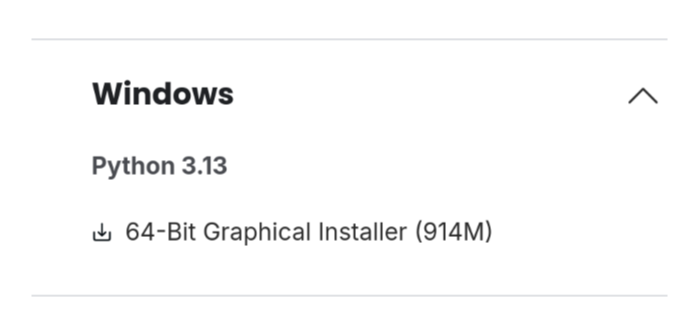
Once you complete this, you will be directed to the downloads page. Download the Windows graphical distribution installer.
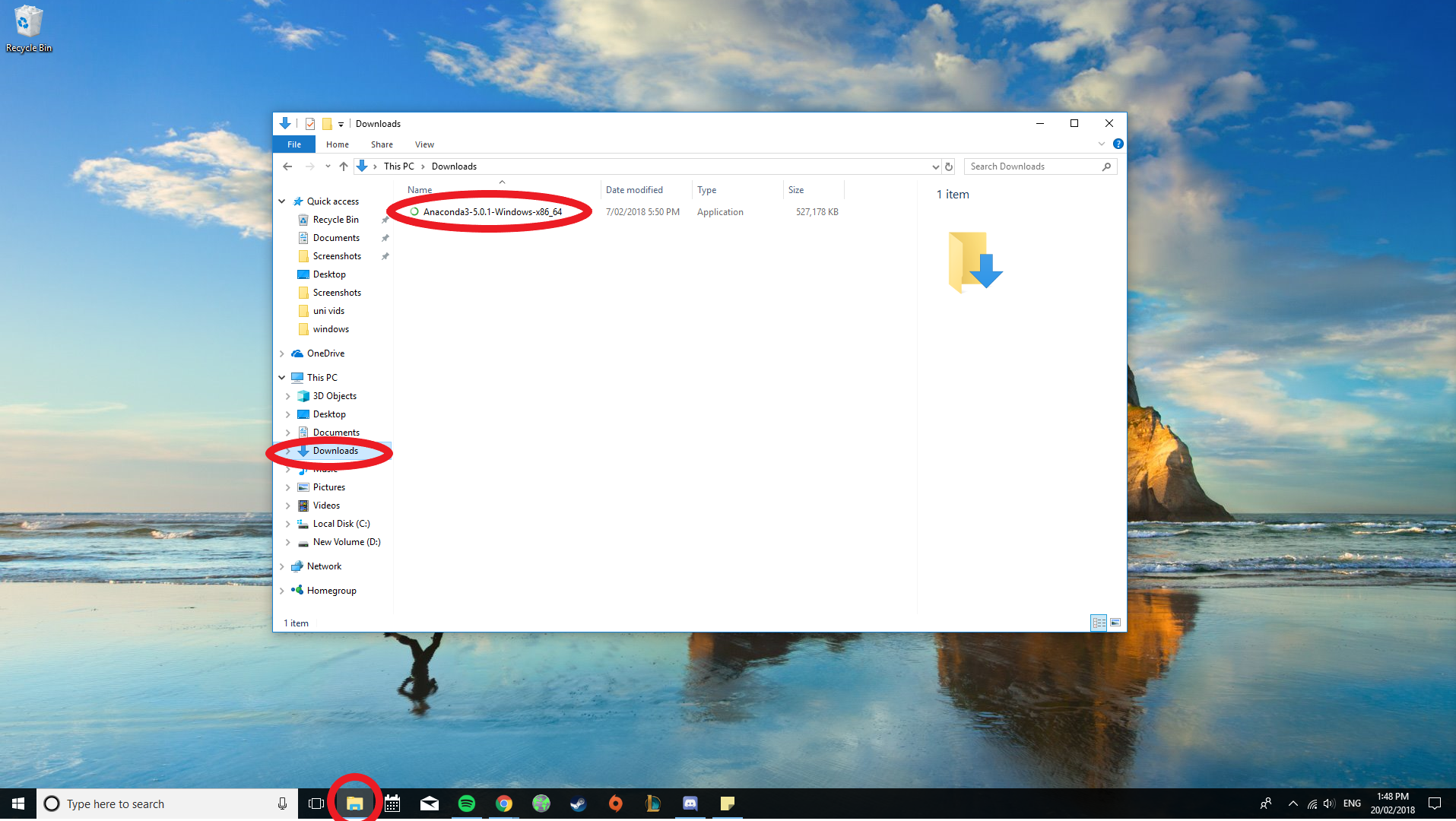
Find the installer file. It will most likely be in your Downloads folder, which you can find on the sidebar of the Windows file explorer. Alternatively, you can also find the file by opening the downloads page of your web browser.
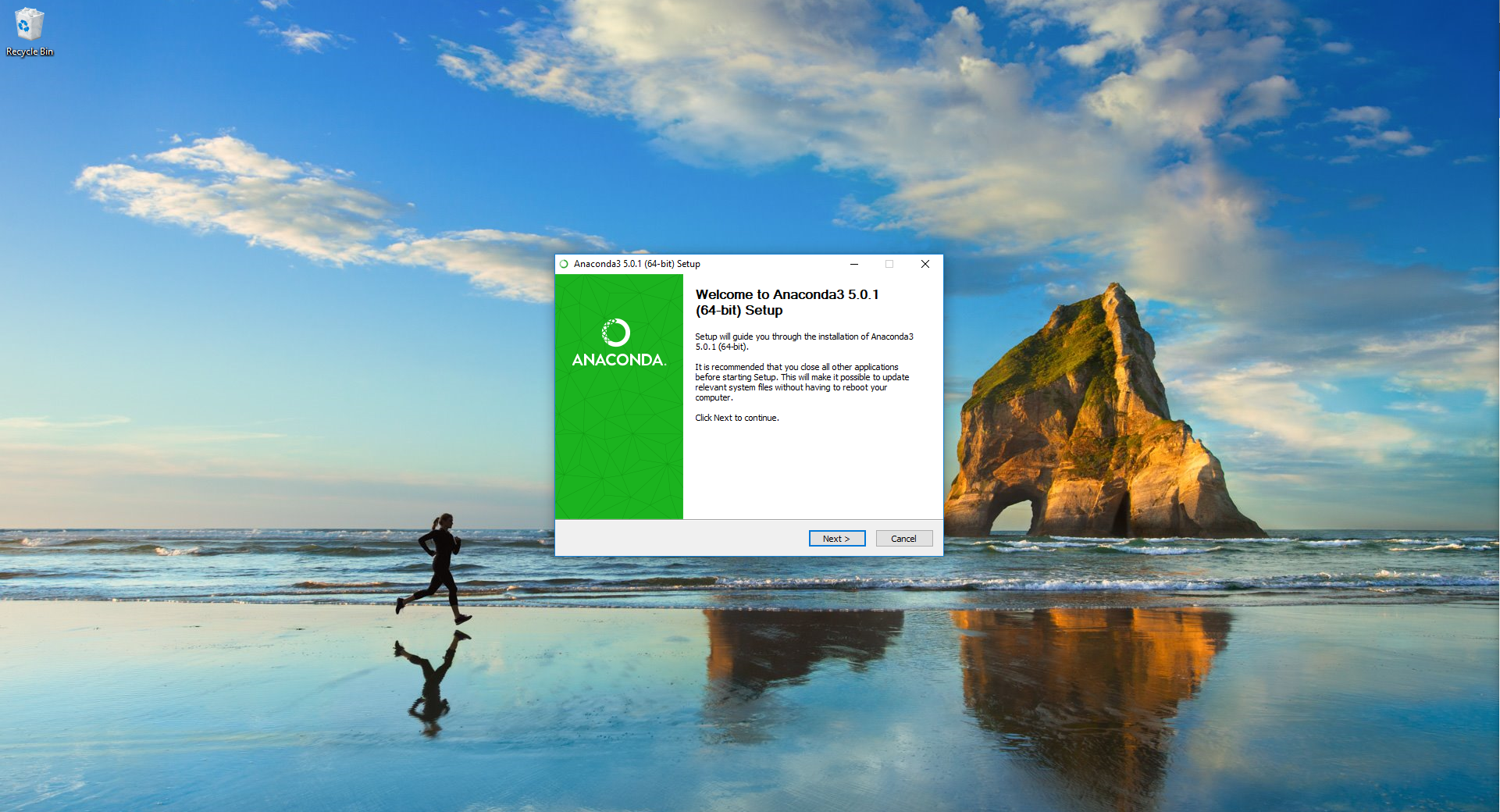
Double click on the installer and follow the installation instructions.
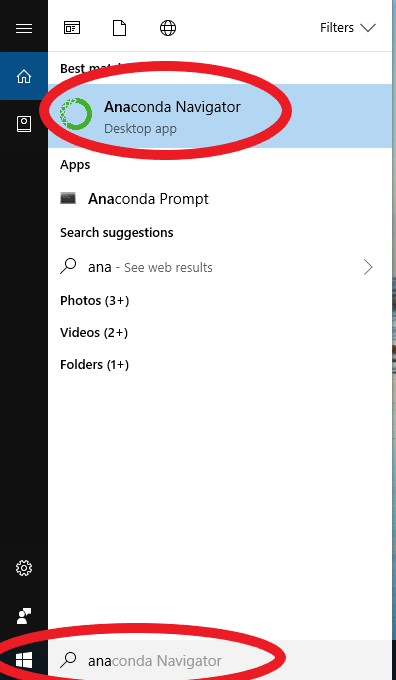
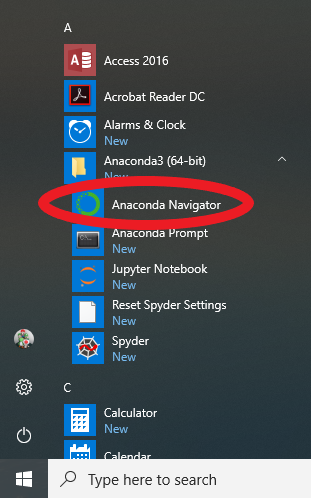
Anaconda should now be installed! You can now open Anaconda by searching for Anaconda Navigator on the Start Menu. You can also directly open Spyder by searching for it. Alternatively, you can open the Start Menu and open the Anaconda3 (64-bit) folder, where you will also be able to find Spyder.
macOS
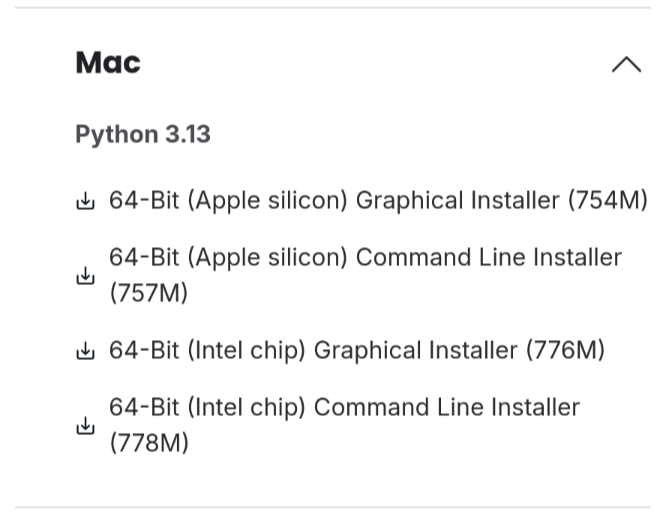
Anaconda no longer publishes installer packages for older Macs with Intel chips, meaning that Macs generally made before late 2020 will not be able to install the latest version of Anaconda. You can check your Mac's processor information by clicking the Apple icon on the top left, and then clicking About this Mac. If you have an Apple Silicon chip, you can continue following the guide as normal. If you have an Intel chip, you can visit the Anaconda archives to download the last Intel-supported installer, Anaconda3-2025.06-1-MacOSX-x86_64.pkg. You should then be able to continue following this guide from the installation steps.
To install Anaconda on macOS, head to the Anaconda downloads page. Registration is mandatory to proceed, so click Get Started.
Click Sign Up with Email to create an account. You can use either your UNSW email or personal email.
Click Sign Up with Email again. Anaconda will send you an email that contains a verification link. Click on it to verify your account.
Once you do this, you will be asked for your personal details. Enter your first and last name, respond to the EULA prompt and then continue. You may skip any additional prompts by pressing Skip at the bottom right of each box.
Once you complete this, you will be directed to the downloads page. Download the appropriate graphical macOS installer.
Find the installer file. It will most likely be in your Downloads folder, which you can find by opening Finder. Alternatively, you can also find the file by opening the downloads page of your web browser.
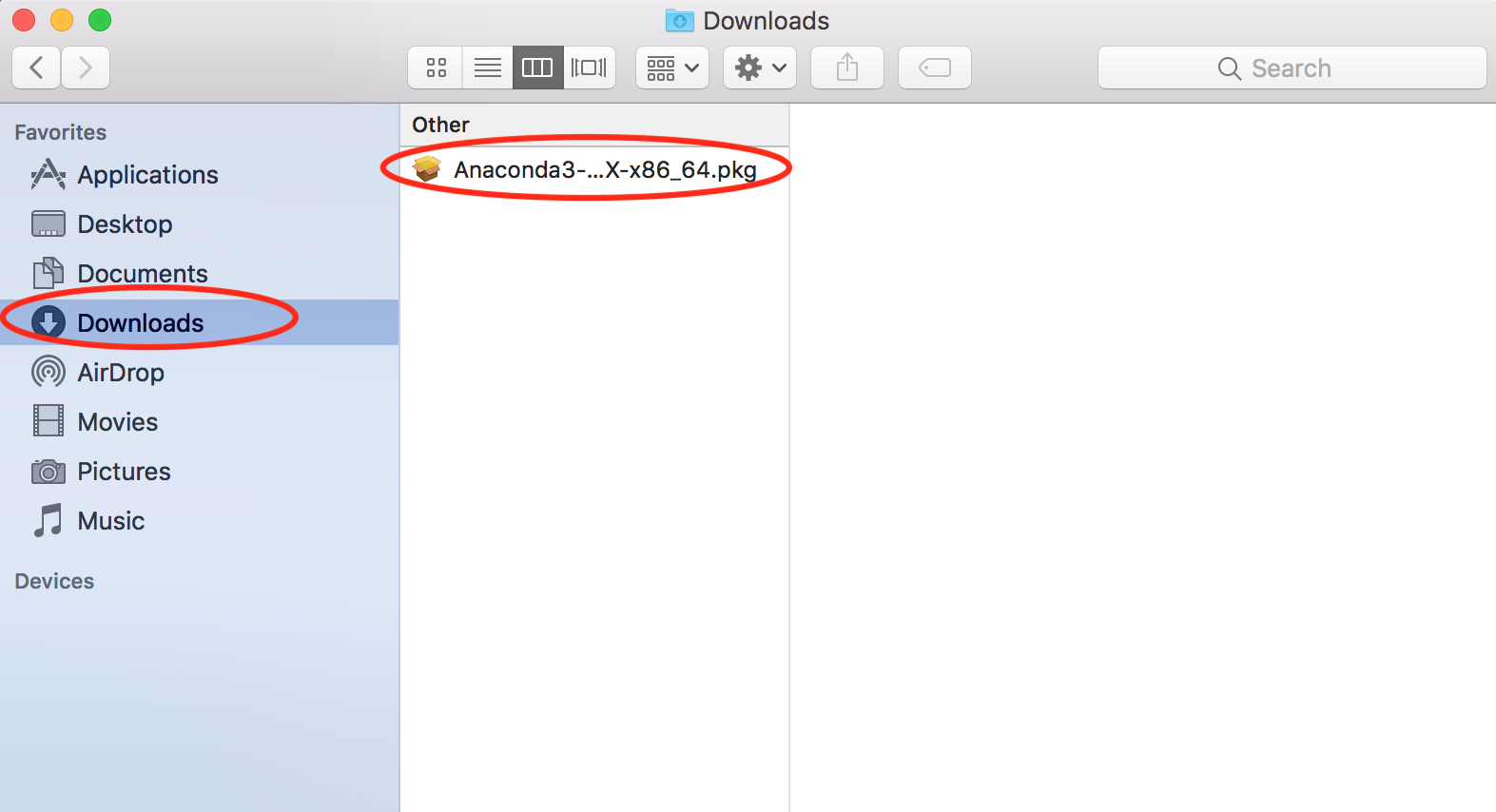
Double click on the installer and follow the installation instructions.
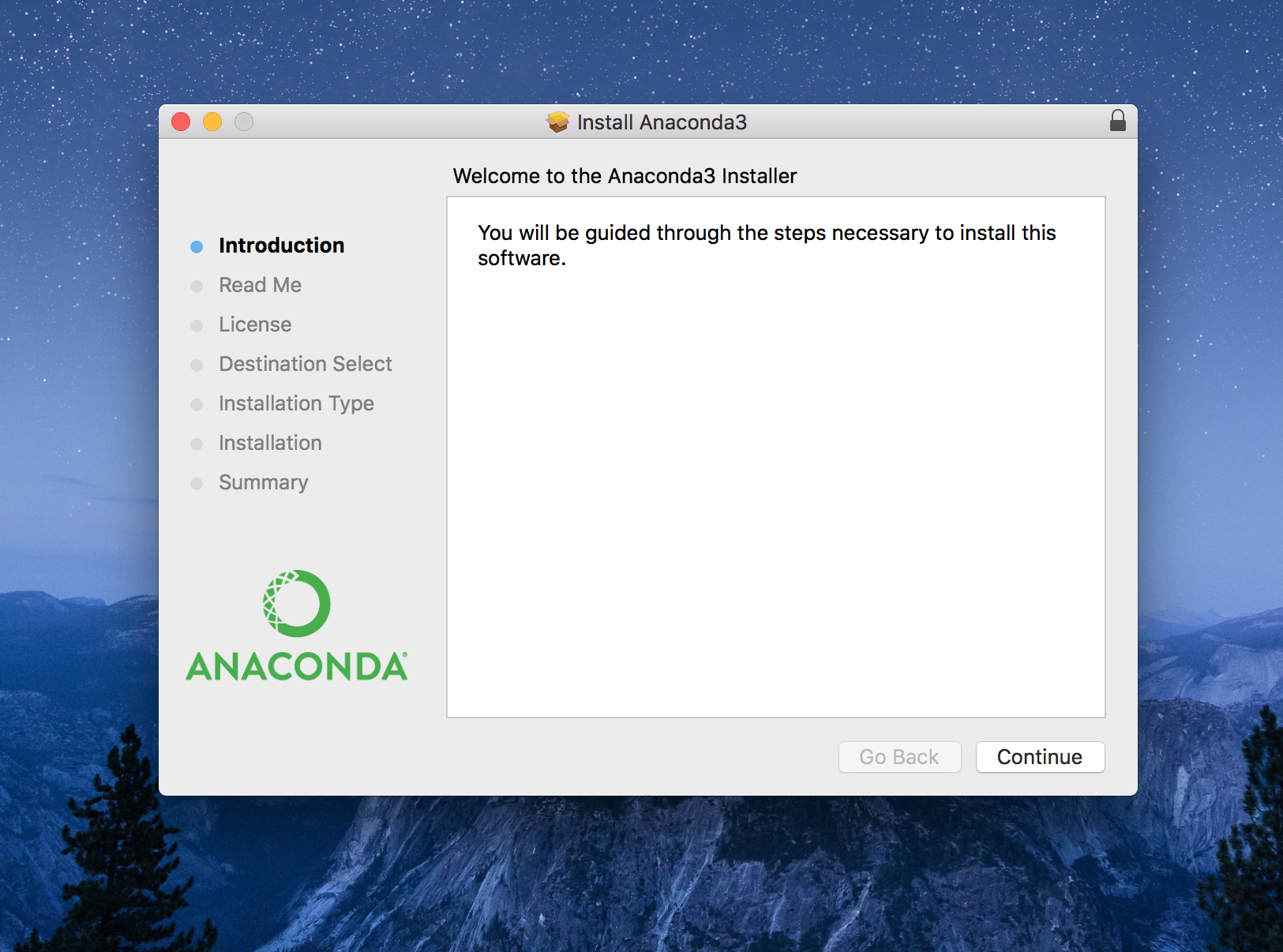
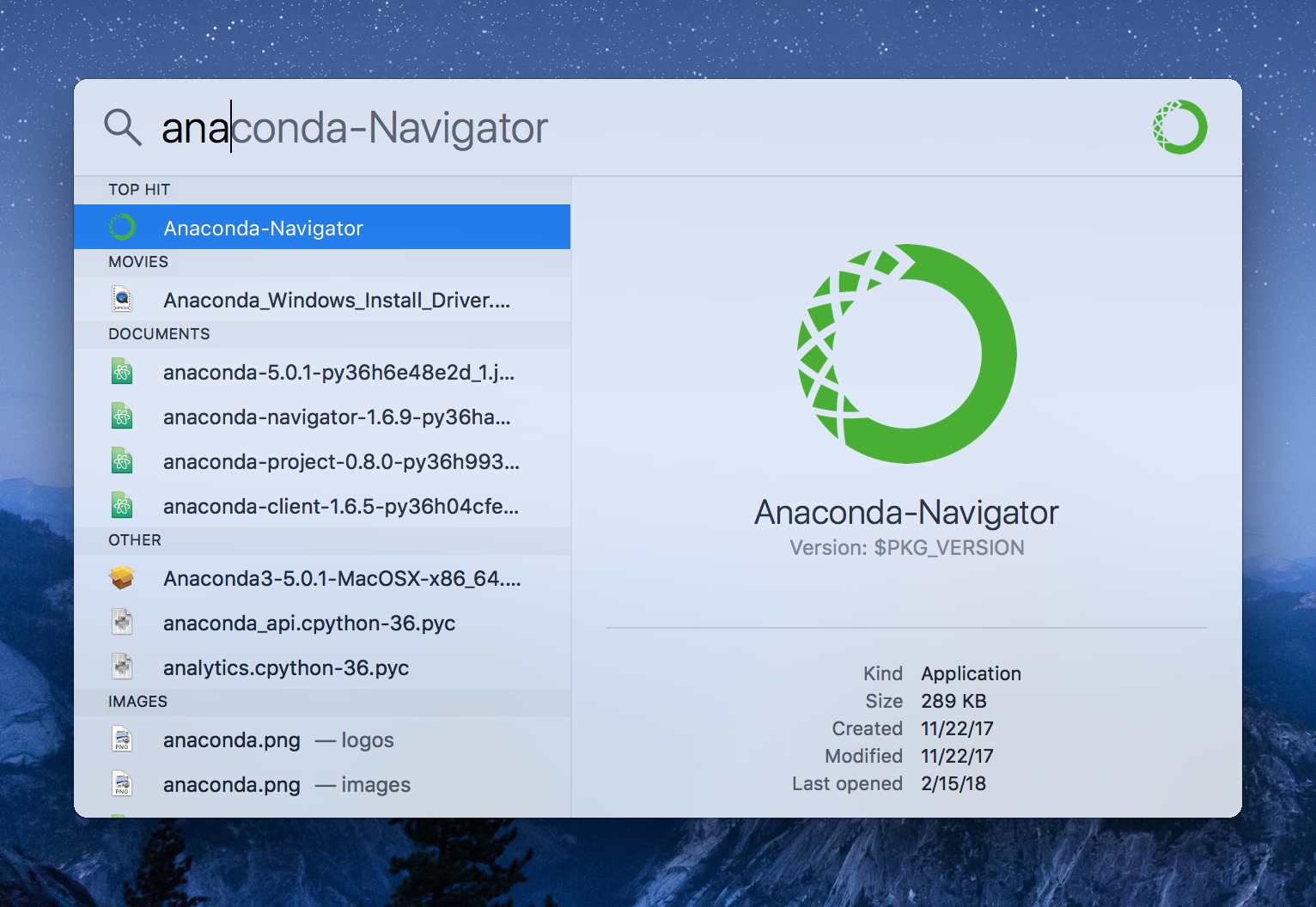
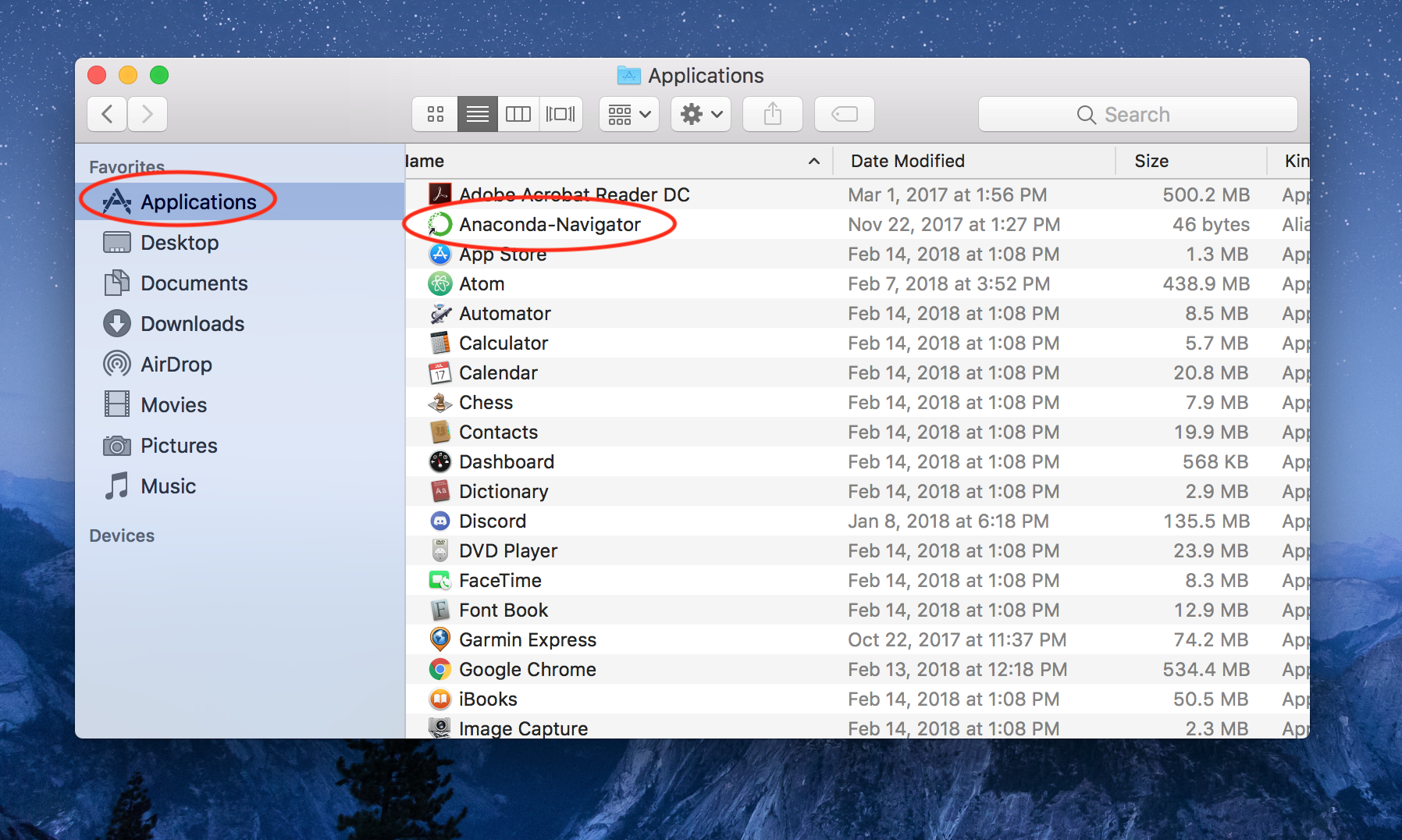
Anaconda should now be installed! You can now open Anaconda by searching for Anaconda Navigator in Spotlight Search using Cmd + Space. Alternatively, you can open the Applications folder in Finder and double click Anaconda Navigator.
A Note on Kite
Spyder may ask whether you would like to install a package called Kite, which provides additional code auto-completion and suggestion services on top of the ones that already exist in Spyder. We recommend you to not install Kite as it can serve as a distraction for programmers who are just starting out.
Additional Help
If you run into an unexpected issue while installing Anaconda, you should ask your tutor for assistance in the first lab or ask on the course forum (or both). There will also be additional help sessions that run throughout the term which you can also get help in for anything course related.
While you are waiting for help, you can use Spyder on a CSE machine instead.
Opening, saving and naming files in Spyder
VLAB
A YouTube video is available if you prefer a visual tutorial.
Click the top left Applications Menu button. Find the Development section in the dropdown, and then click Spyder3.
Create a new file to save, or use the default temp.py file opened when Spyder starts by clicking File on the top menu bar, and then clicking Save as....
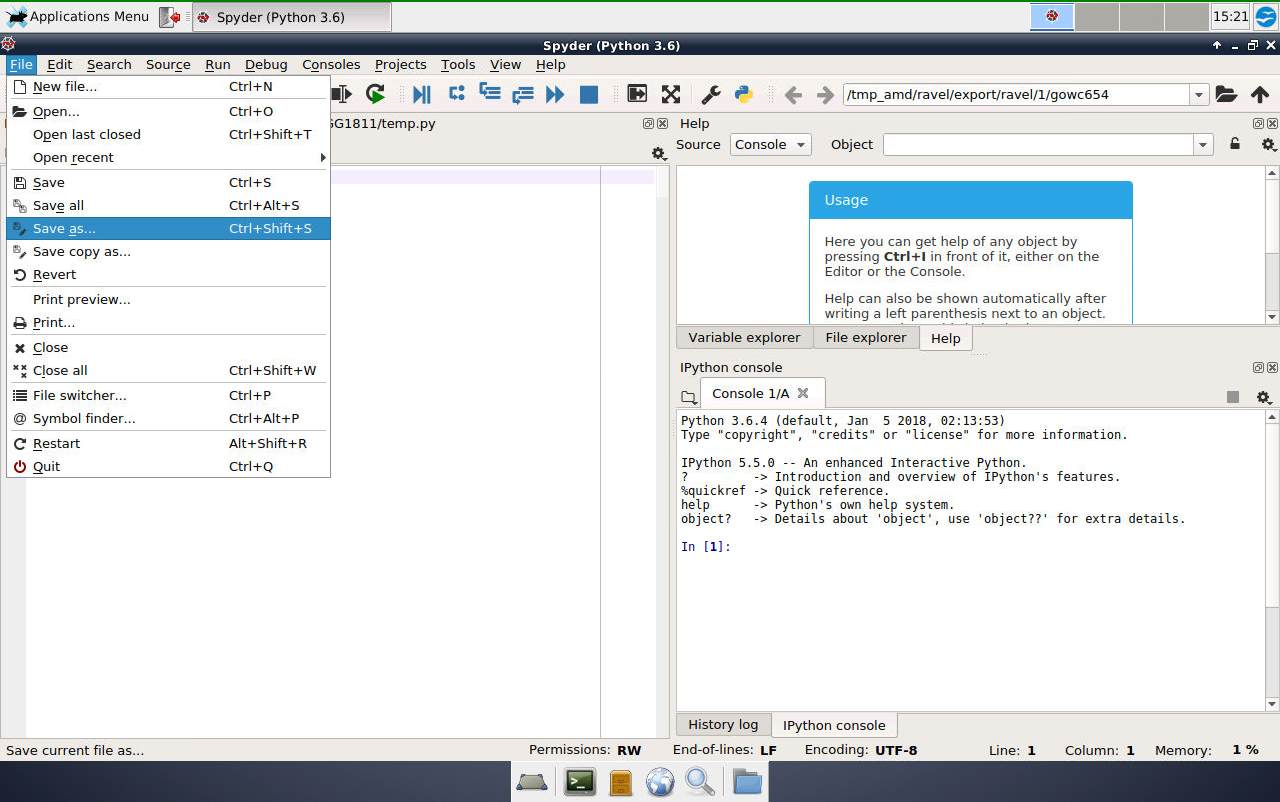
Navigate to your folder by clicking your username (zID) folder on the left. Choose the folder you want to save in, or create a new folder. Name the file whatever you'd like, but try to choose an informative name. Once done, click save.
Windows
A YouTube video is available if you prefer a visual tutorial.
You can open Spyder either through Anaconda or directly from the Start Menu.
Type Spyder into the Start Menu search bar, or open the Anaconda3 (64-bit) folder to open Spyder. If you are opening Spyder via Anaconda Navigator, open Anaconda and then select Launch on the Spyder window.
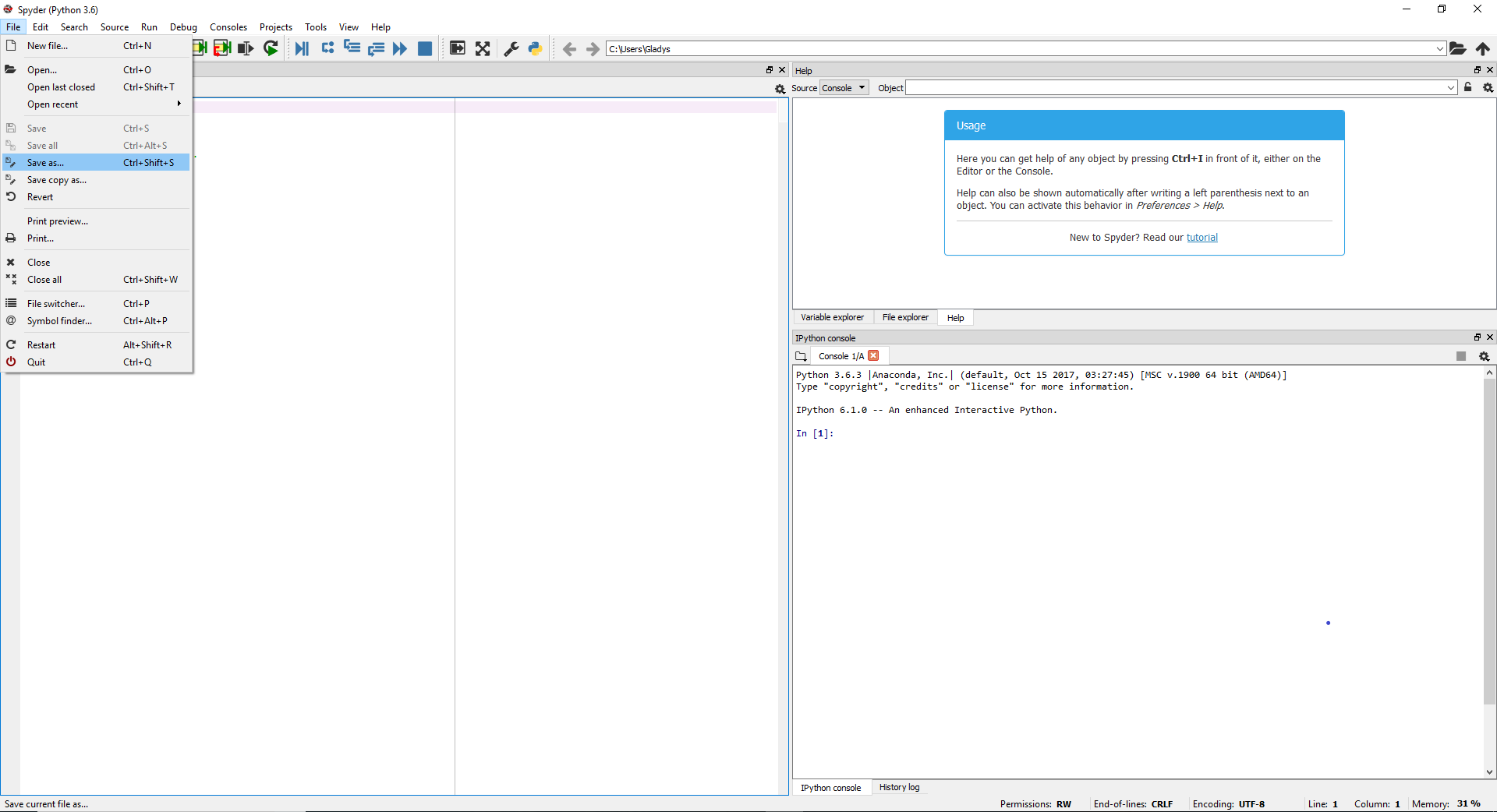
Create a new file to save, or use the default temp.py file opened when Spyder starts by clicking File on the top menu bar, and then clicking Save as....
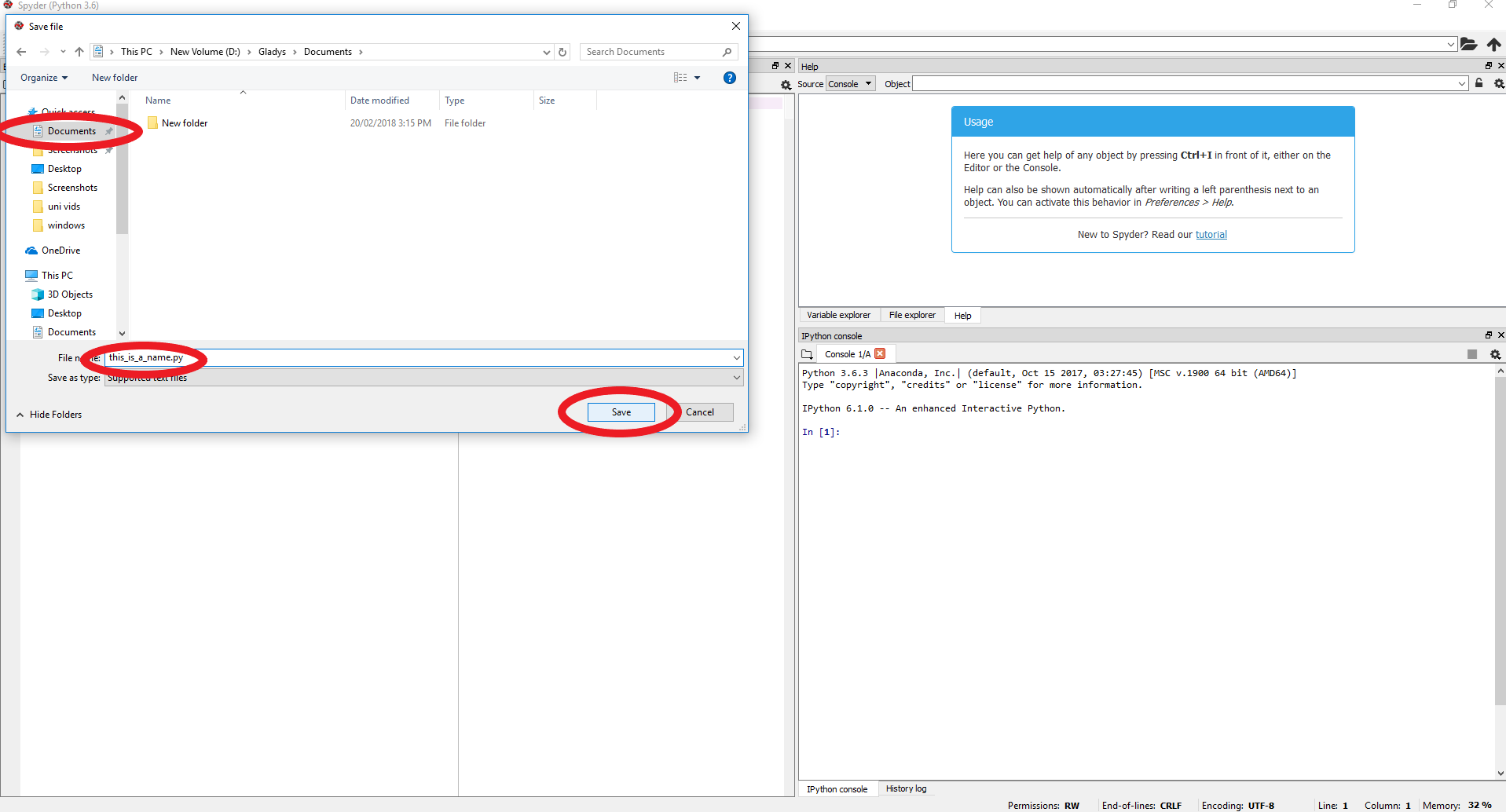
Navigate to a folder (for example, your Documents folder). Name the file whatever you'd like, but try to choose an informative name. Once done, click save.
macOS
A YouTube video is available if you prefer a visual tutorial.
Open Spotlight Search with Cmd + Space. Type in Anaconda and open Anaconda Navigator. You can alternatively open Anaconda Navigator by double-clicking on it in the Applications folder.
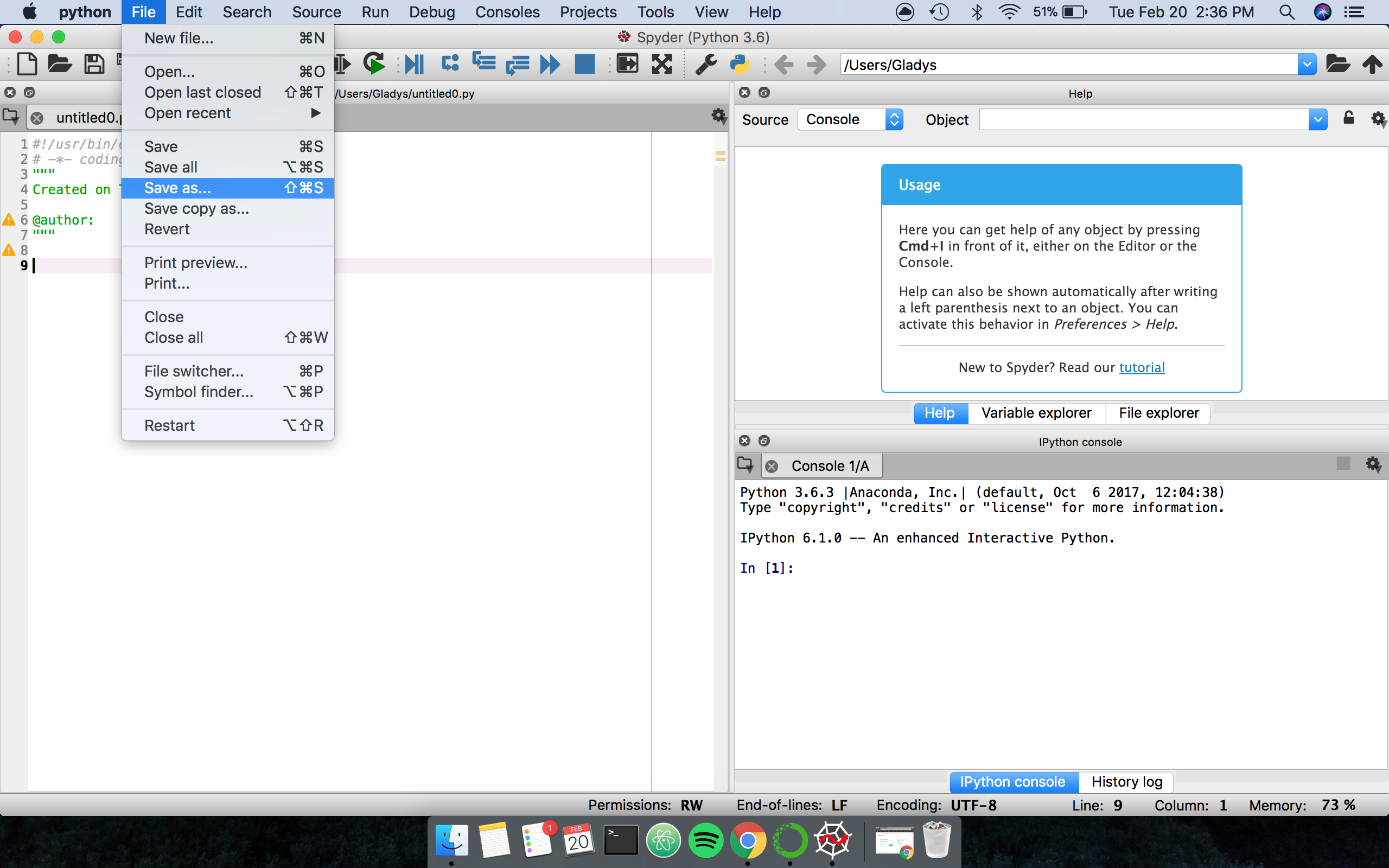
Create a new file to save, or use the default temp.py file opened when Spyder starts by clicking File on the top menu bar, and then clicking Save as....
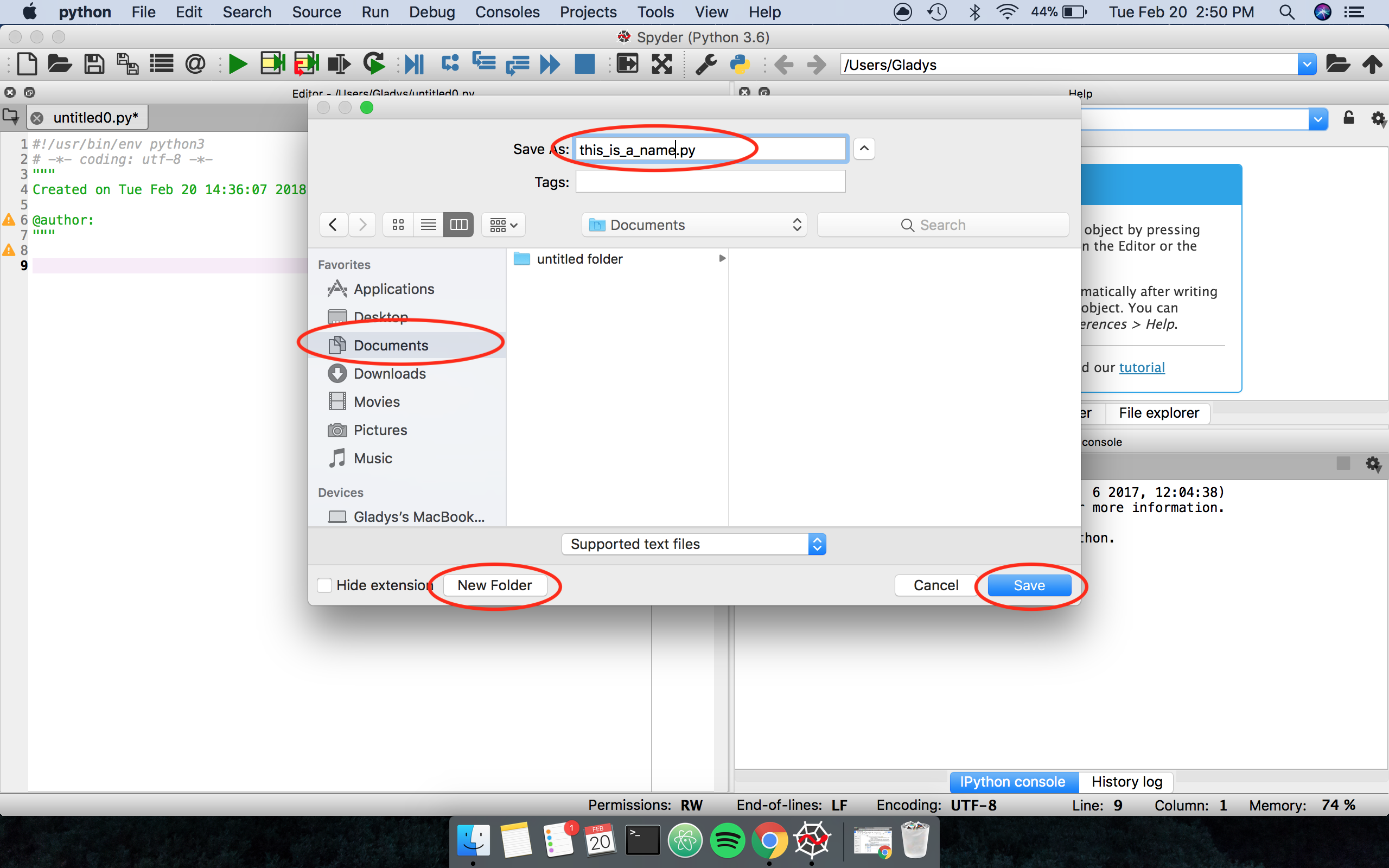
Navigate to a folder (for example, your Documents folder). Name the file whatever you'd like, but try to choose an informative name. Once done, click save.
Running a Python program in Spyder
Open Spyder with a Python file of your choosing. If you don't have anything at the moment, write:
print("Hello World")
As some example code for now. Save the file, and then run the program by either:
- Clicking the green play button on the Spyder toolbar,
- Clicking
Runon the top menu bar and then clickingRunon the dropdown, or - Pressing F5 on your keyboard.
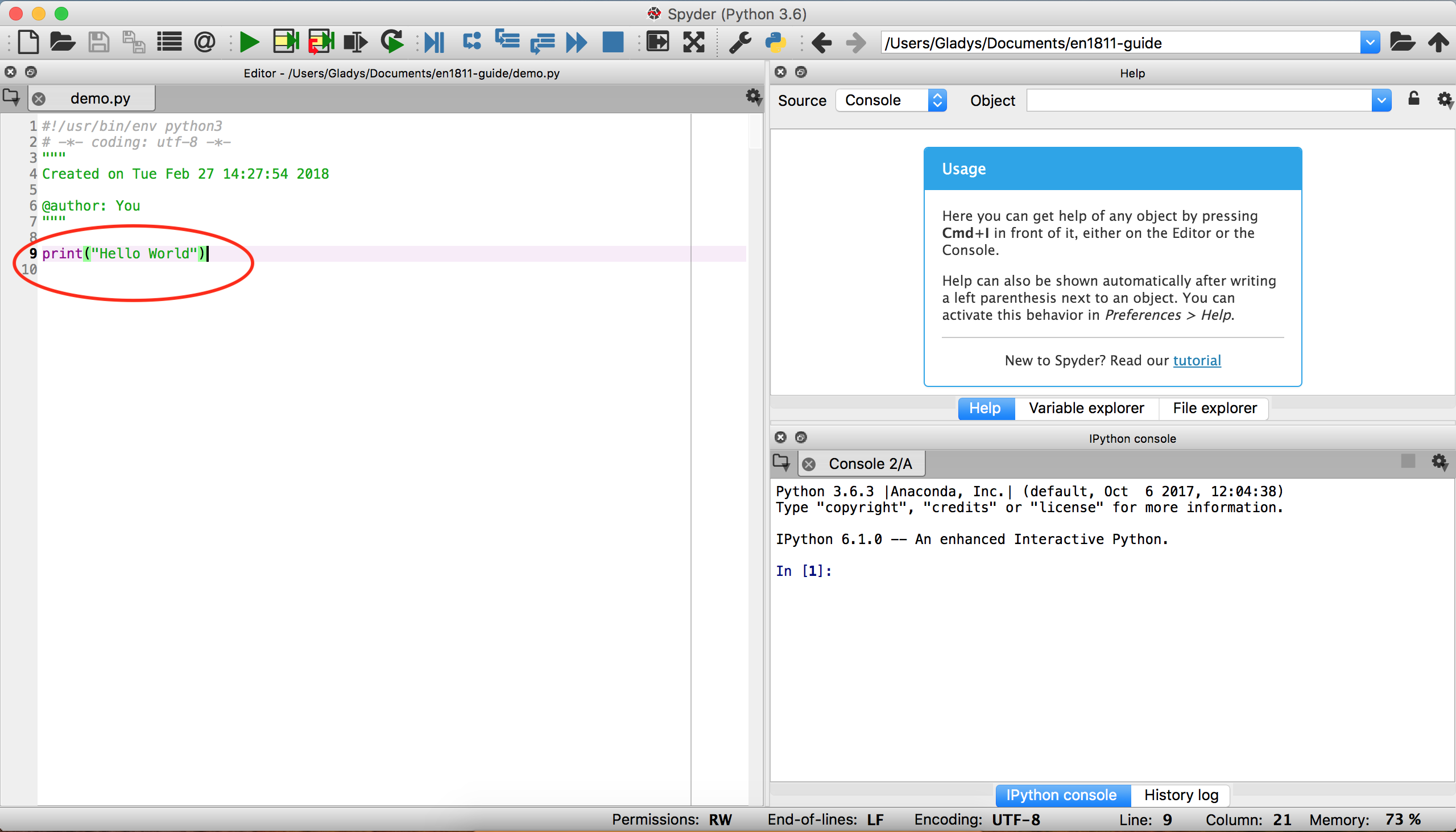
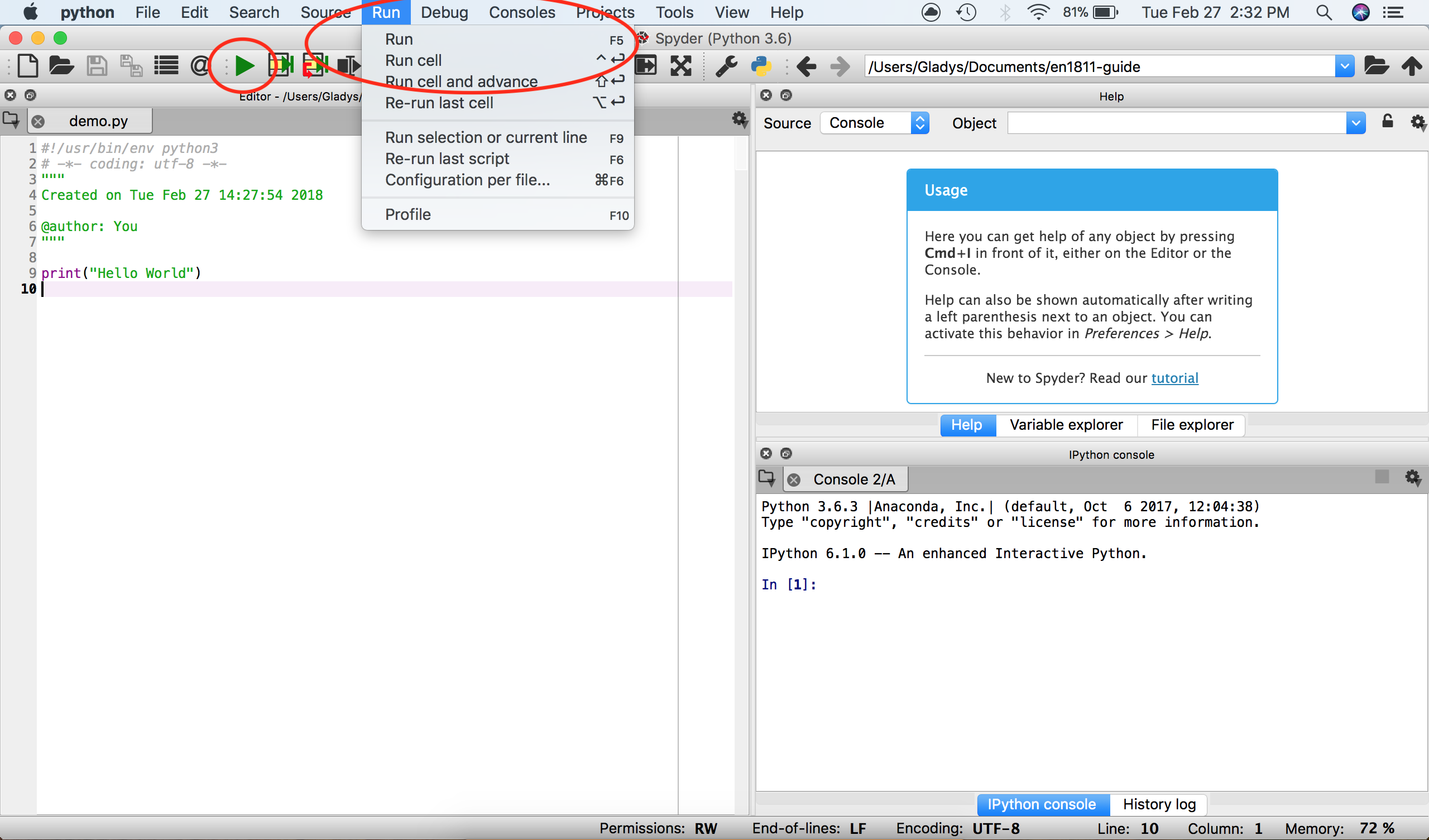
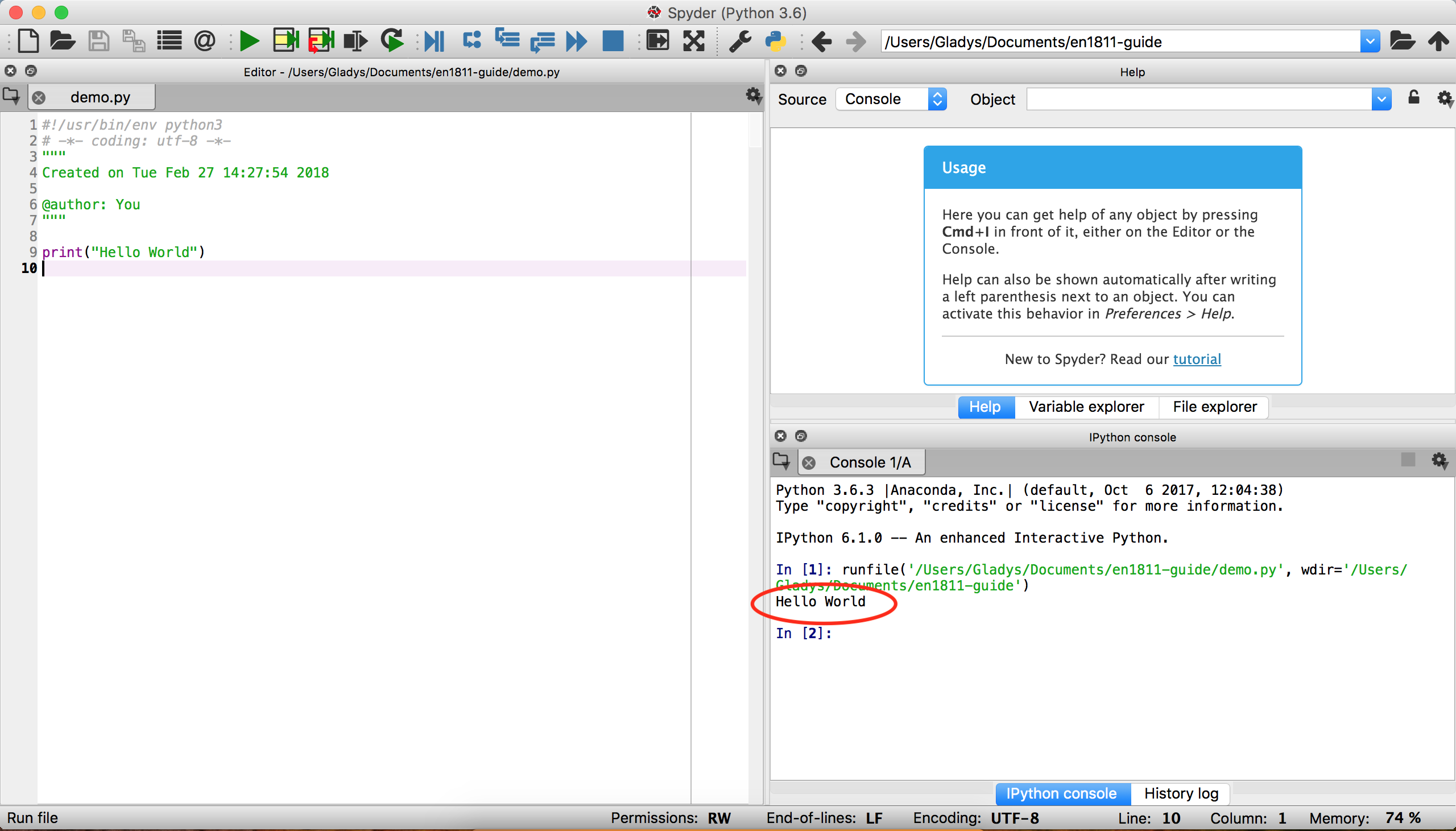
You should see Hello World printed out on the console.
Downloading files
You will be provided with starter files when completing assignments and labs. Here's how you can download them.
Firefox on VLAB
A YouTube video is available if you prefer a visual tutorial.
- Open the Web Browser (this is Firefox, but renamed) by clicking the Applications Menu on the top left.
- Navigate to the website you wish to download files from.
- Click on the link that downloads the file.
- Click
Save Ason the popup. - Choose a directory to save the file in.
- Open a file browser and navigate to your chosen directory. You will find your downloaded file there.
Chrome on Windows
- Open Google Chrome.
- Navigate to the website you wish to download files from.
- Click on the link that downloads the file.
- A bar with the name of the file downloaded will appear on the bottom of your browser.
- Click the down arrow next to the file, and then click
Show in Folderto open the directory it was downloaded to.
Safari on macOS
A YouTube video is available if you prefer a visual tutorial.
- Open Safari.
- Navigate to the website you wish to download files from.
- Click on the link that downloads the file.
- Open Finder, and then navigate to your Downloads folder. You will find your downloaded file there.
Creating a new folder
Using a file manager on VLAB
A YouTube video is available if you prefer a visual tutorial.
Double click on the Home icon. This will open a file manager.
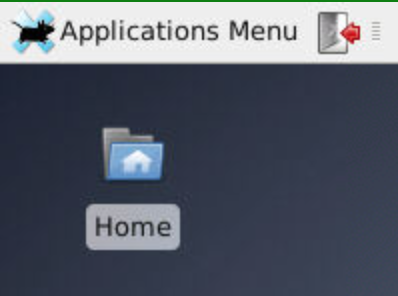
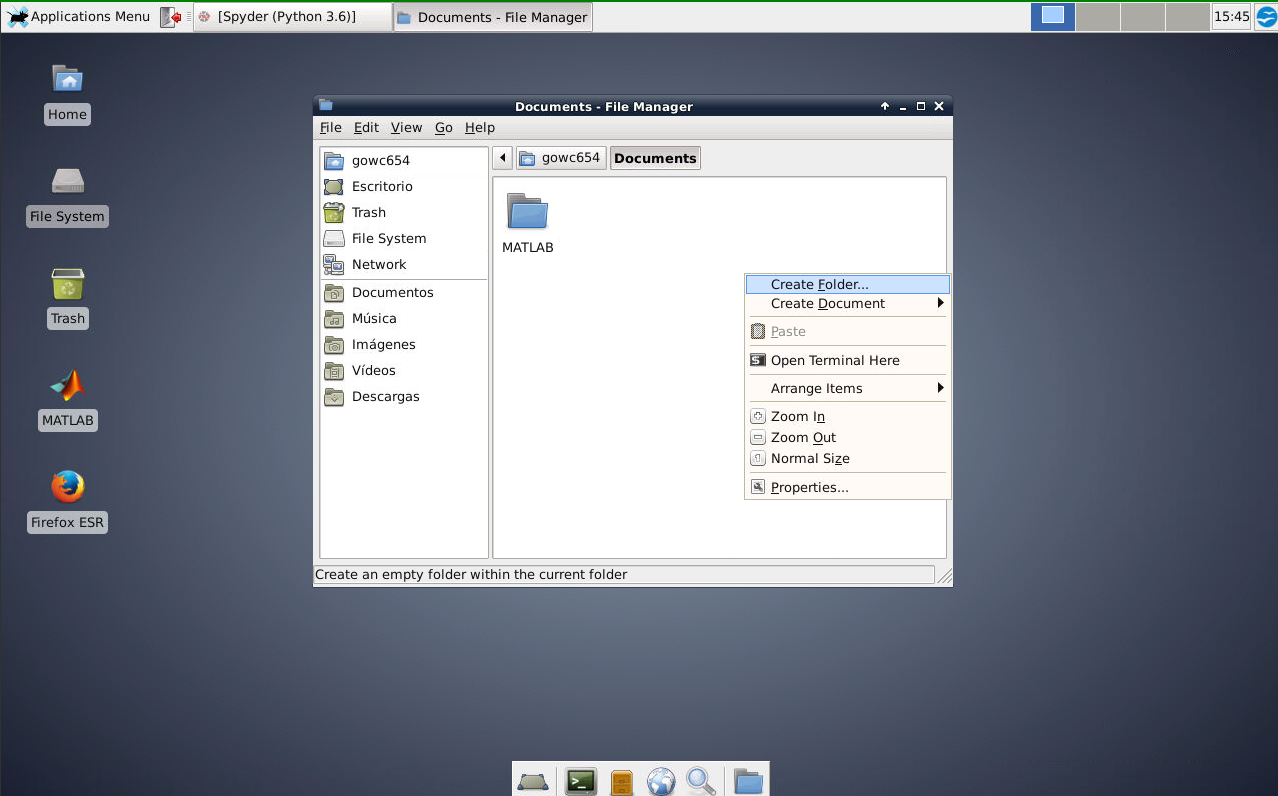
Right click on an empty area, then click Create Folder from the dropdown.
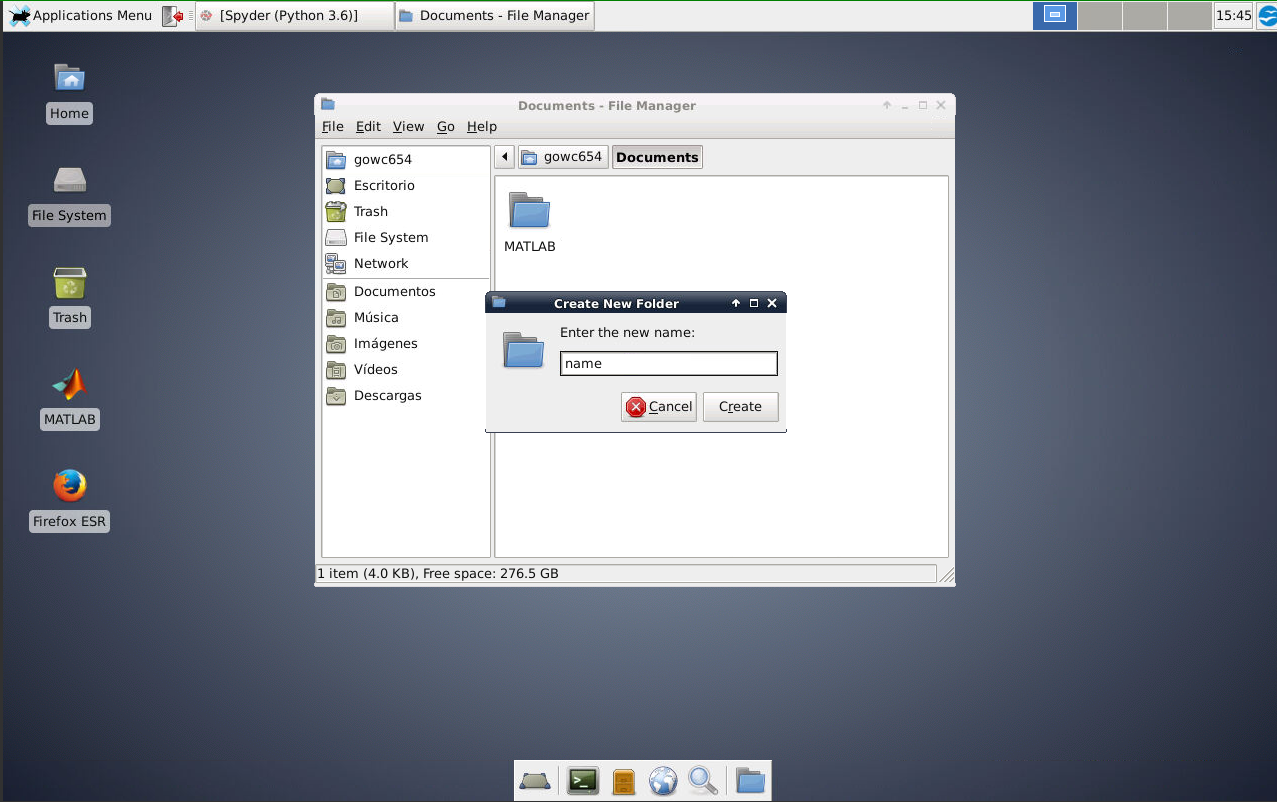
Name the folder, and then press Create.
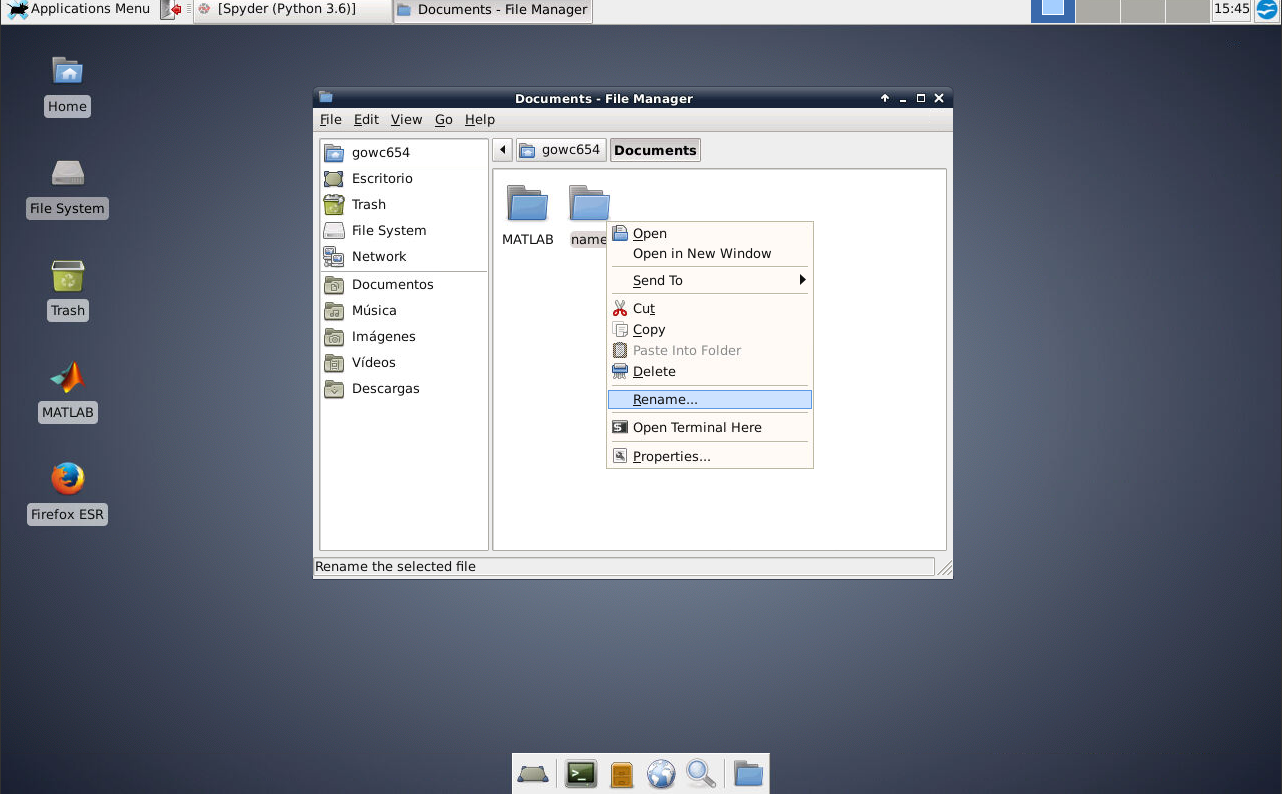
To rename the folder, right click the folder and press Rename.
From a Save As prompt on VLAB
A YouTube video is available if you prefer a visual tutorial.
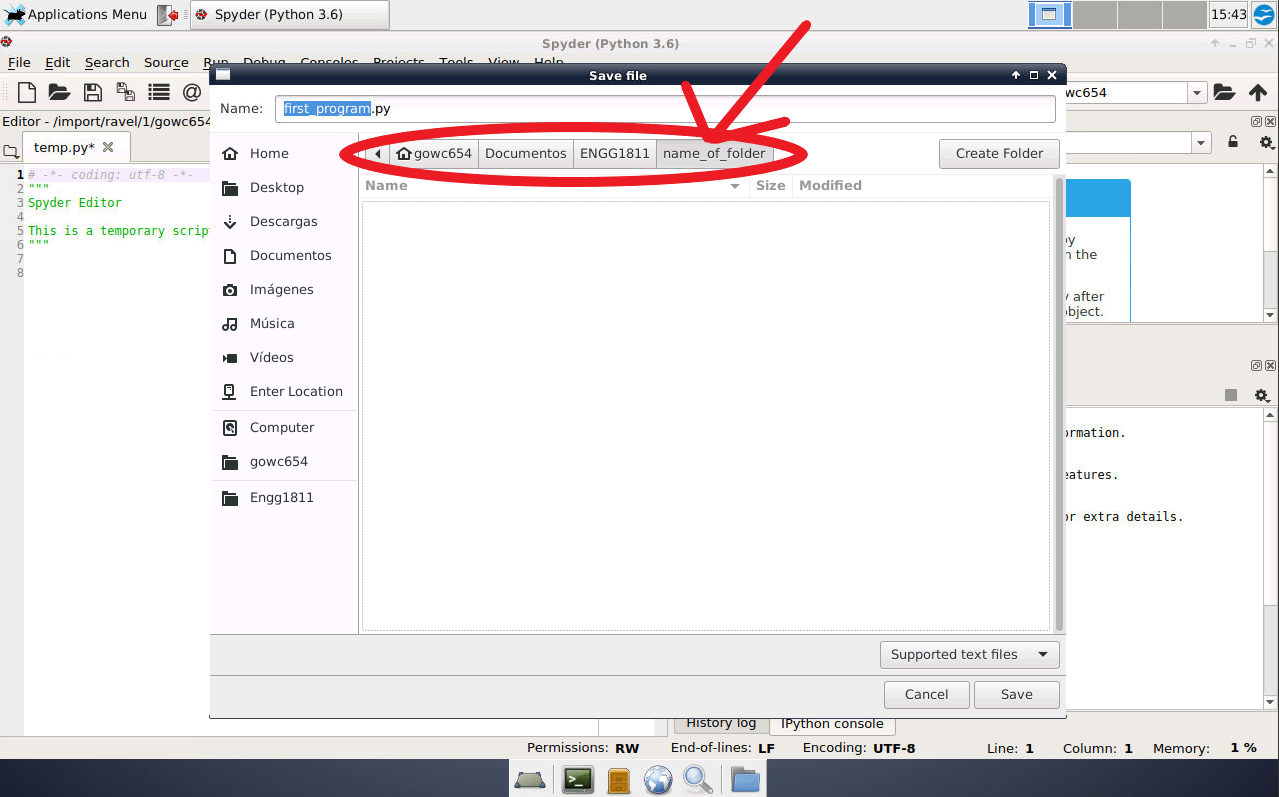
Navigate to the place where you would like to make a new folder. At the top right of the popup, click the Create Folder button.
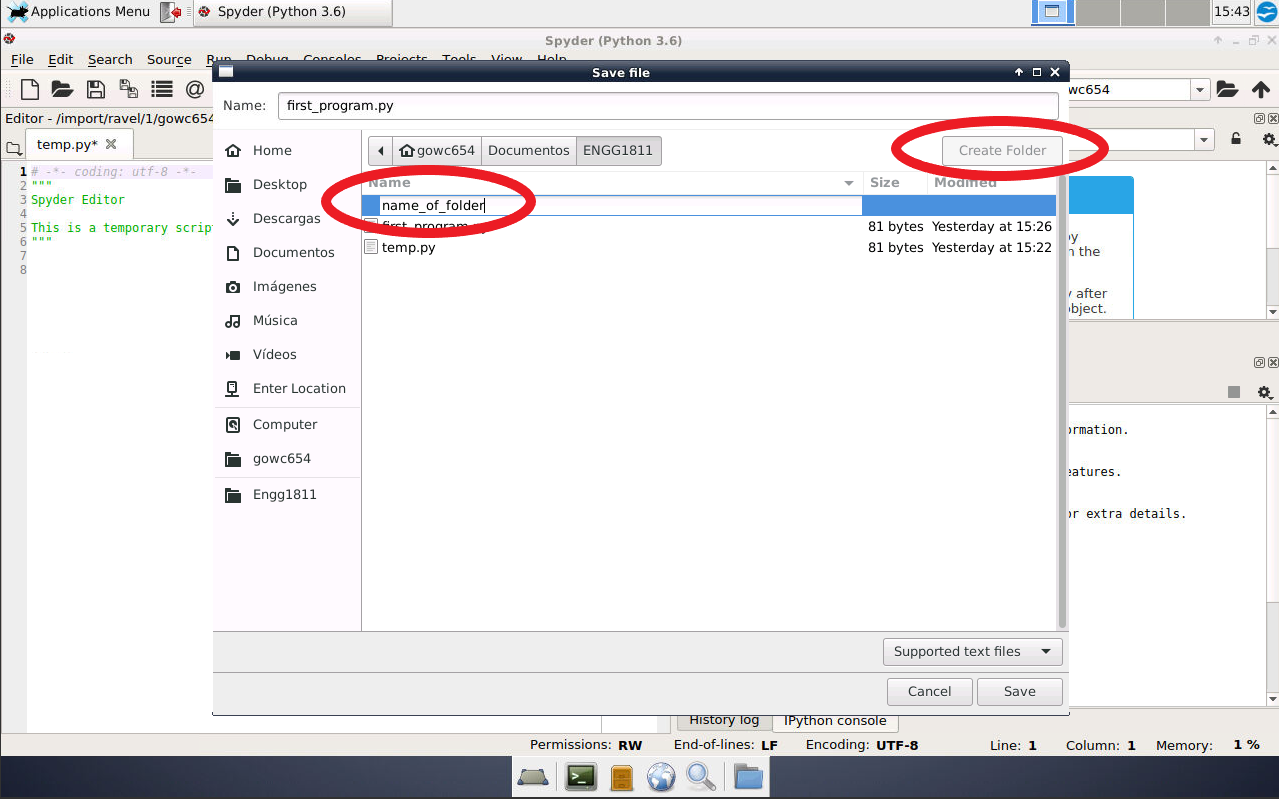
Name the folder, and then press Enter. This will place you inside the newly made folder. Note that you can see what folder you are in via the path, located to the left of the Create Folder button.
Using File Explorer on Windows
A YouTube video is available if you prefer a visual tutorial.
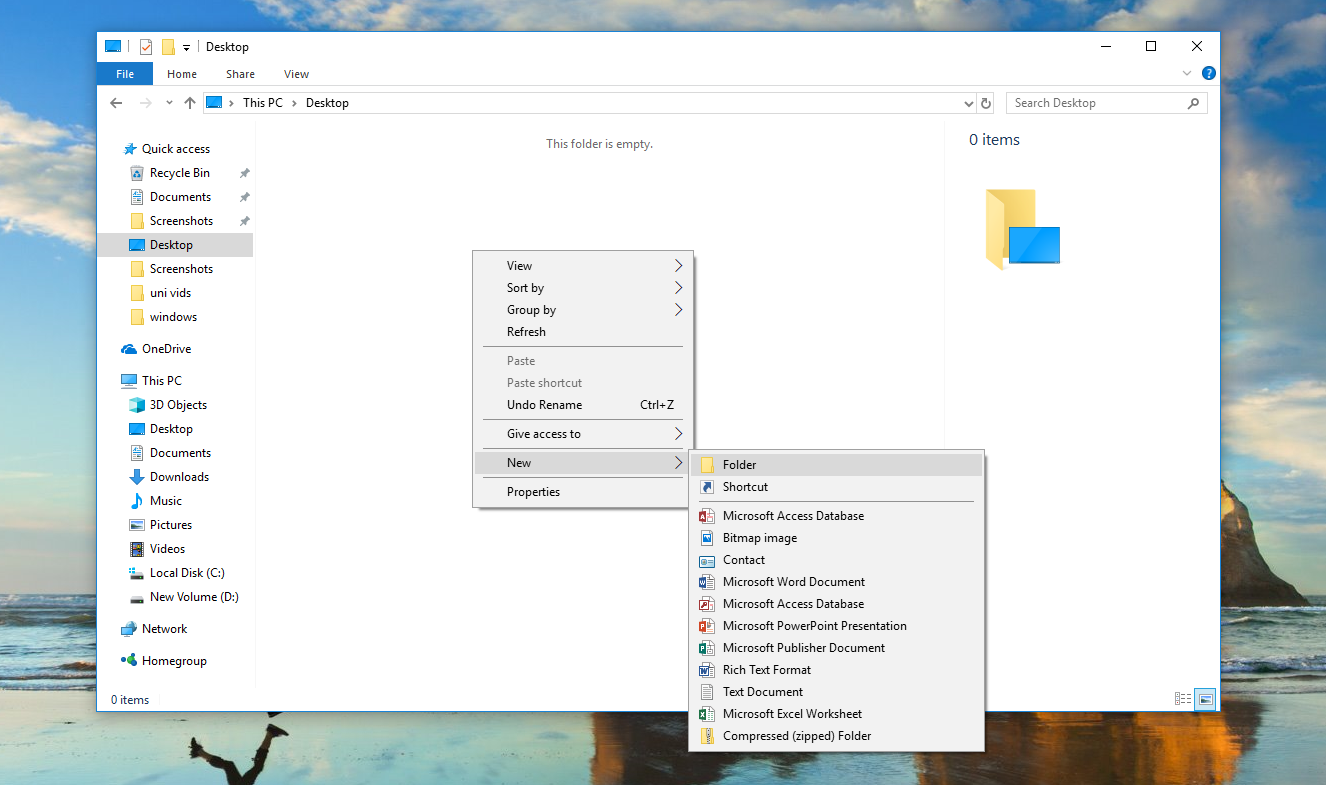
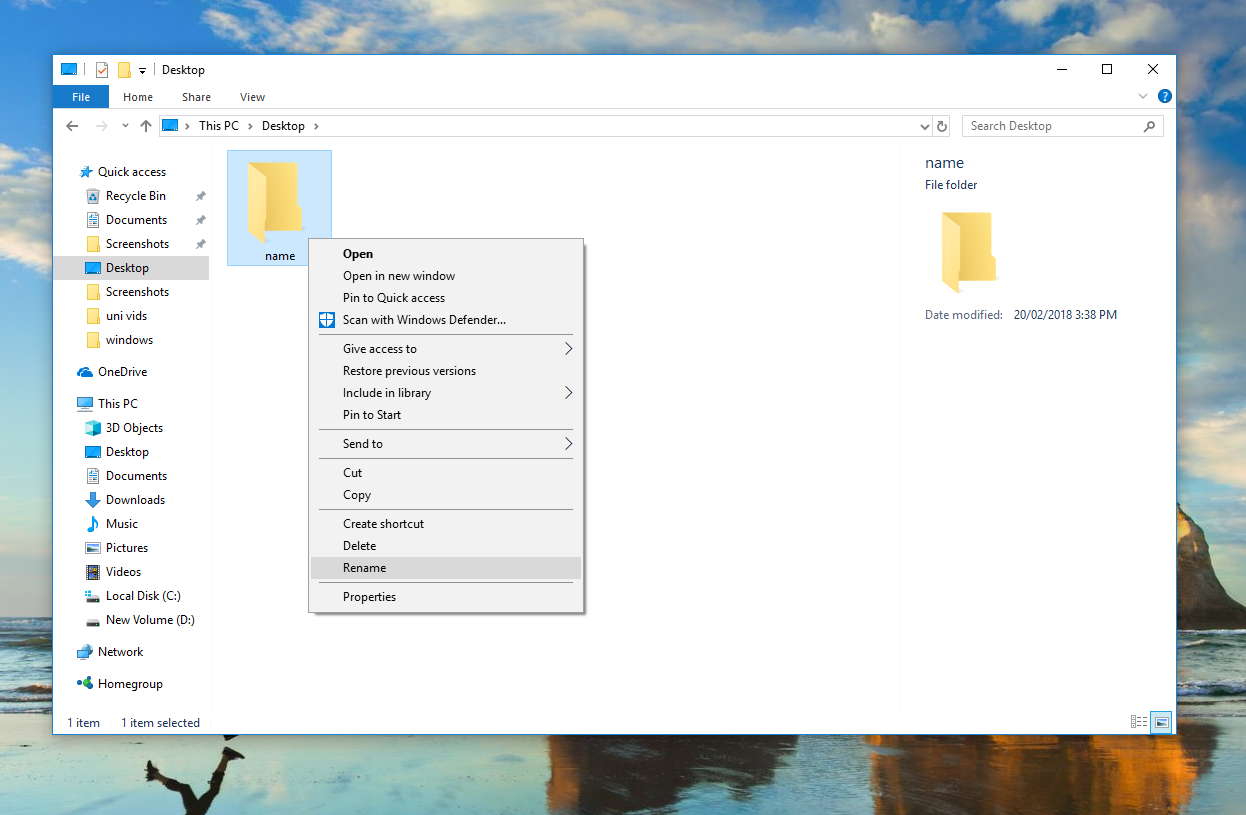
Open File Explorer and navigate to the Documents folder. Right click on an empty space, hover over New in the dropdown and then click Folder. Name the folder, and then left click on an empty space. To rename the folder, right click the newly created folder and click Rename in the dropdown.
From a Save As prompt on Windows
A YouTube video is available if you prefer a visual tutorial.
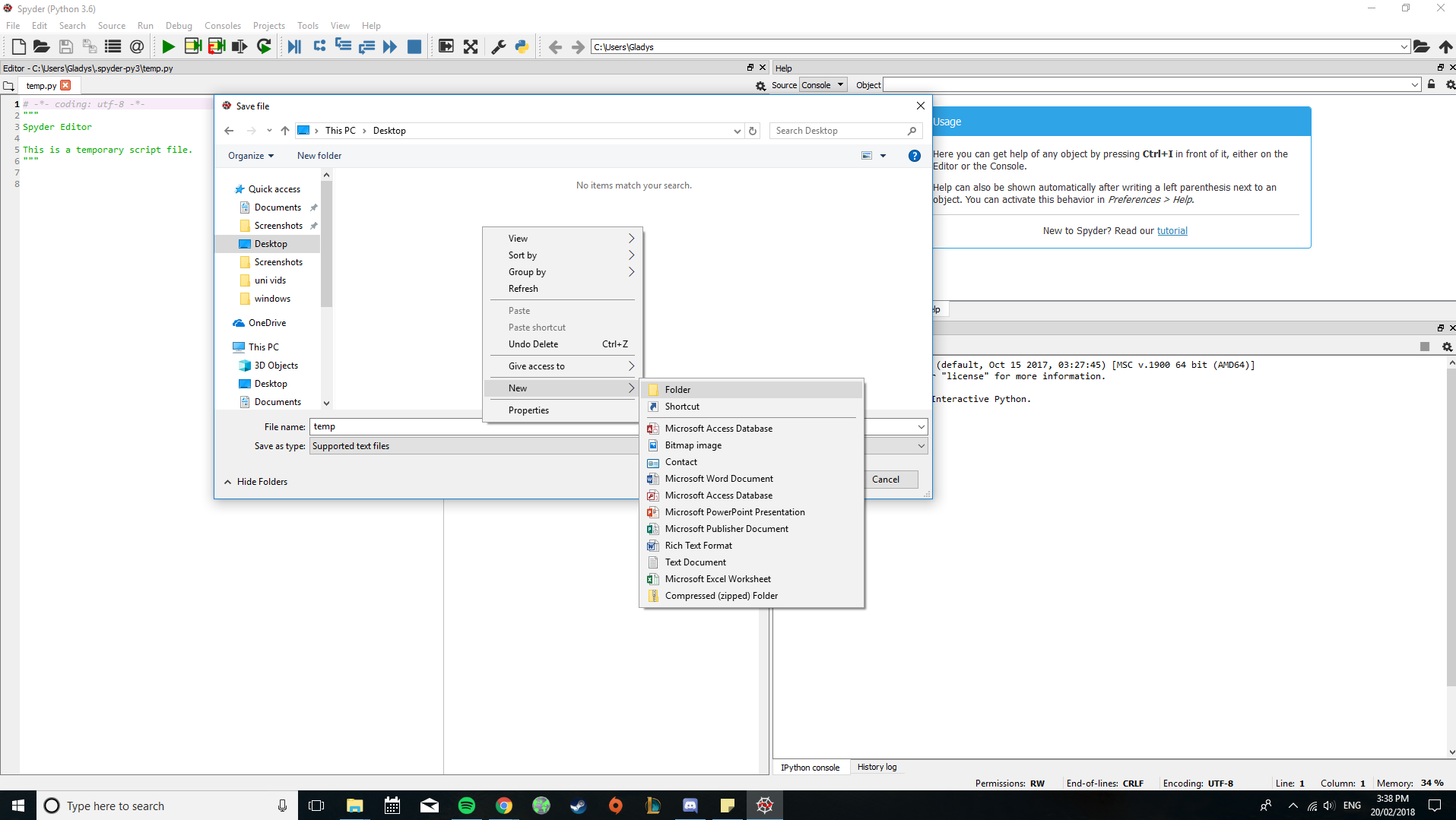
In the popup, navigate to the place where you would like to make a new folder. Right click on an empty space, hover over New and then click Folder. Name the folder, and then left click on an empty space.
Using Finder on macOS
A YouTube video is available if you prefer a visual tutorial.
Open Finder and navigate to Documents. Right click on an empty space and press New Folder from the dropdown.
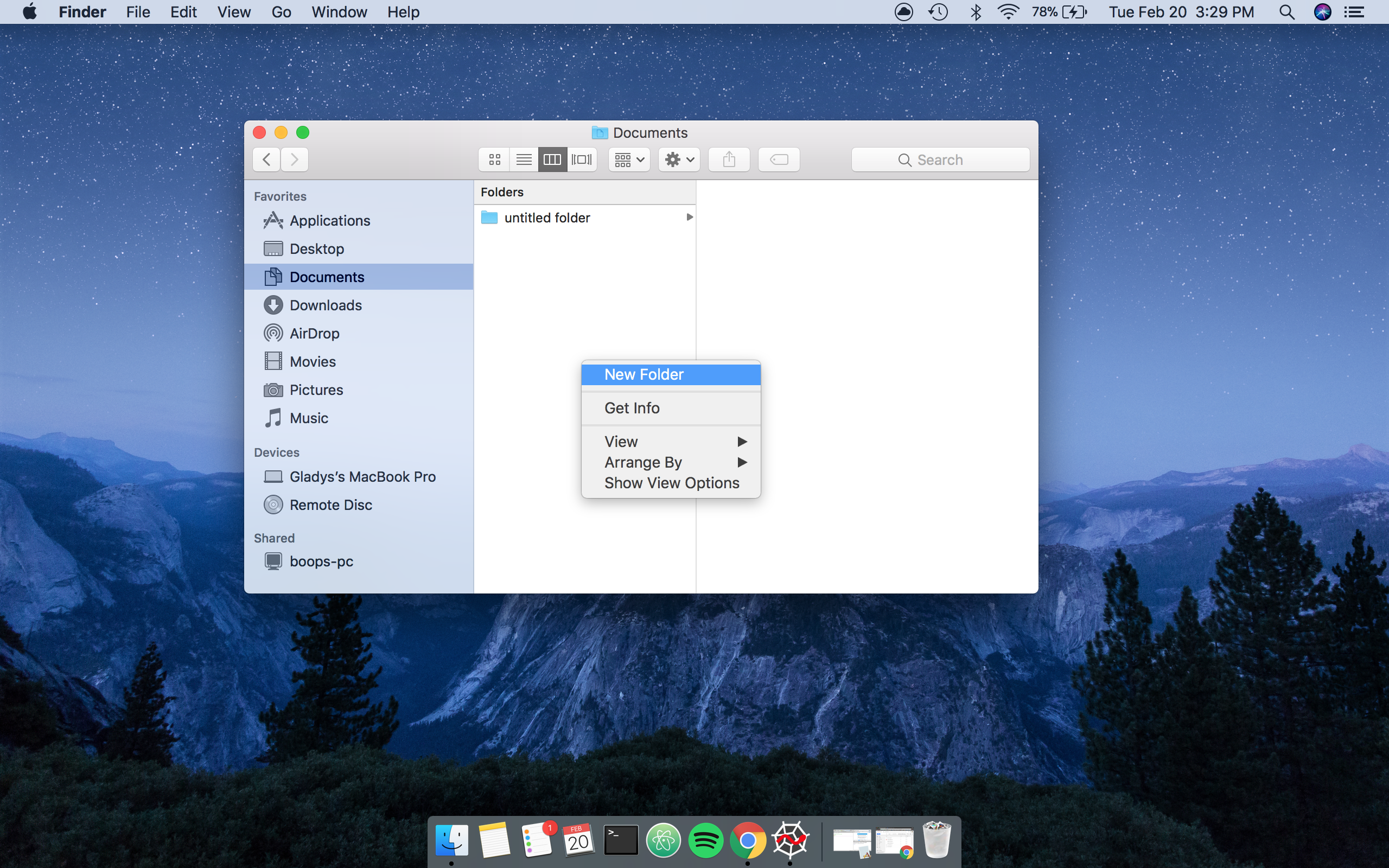
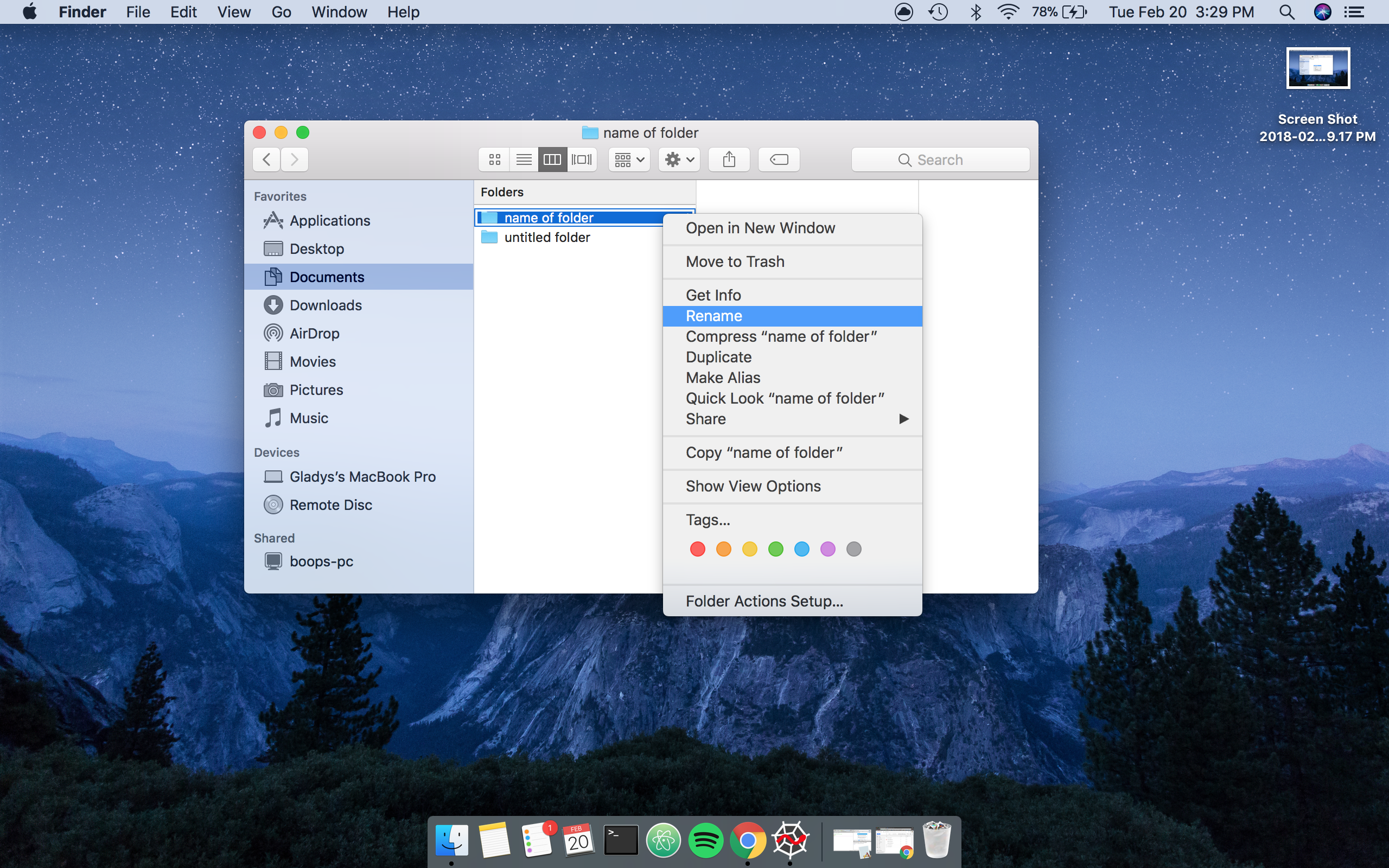
Name the folder, and then press Enter. To rename the folder, right click the folder and press Rename.
From a Save As prompt on macOS
A YouTube video is available if you prefer a visual tutorial.
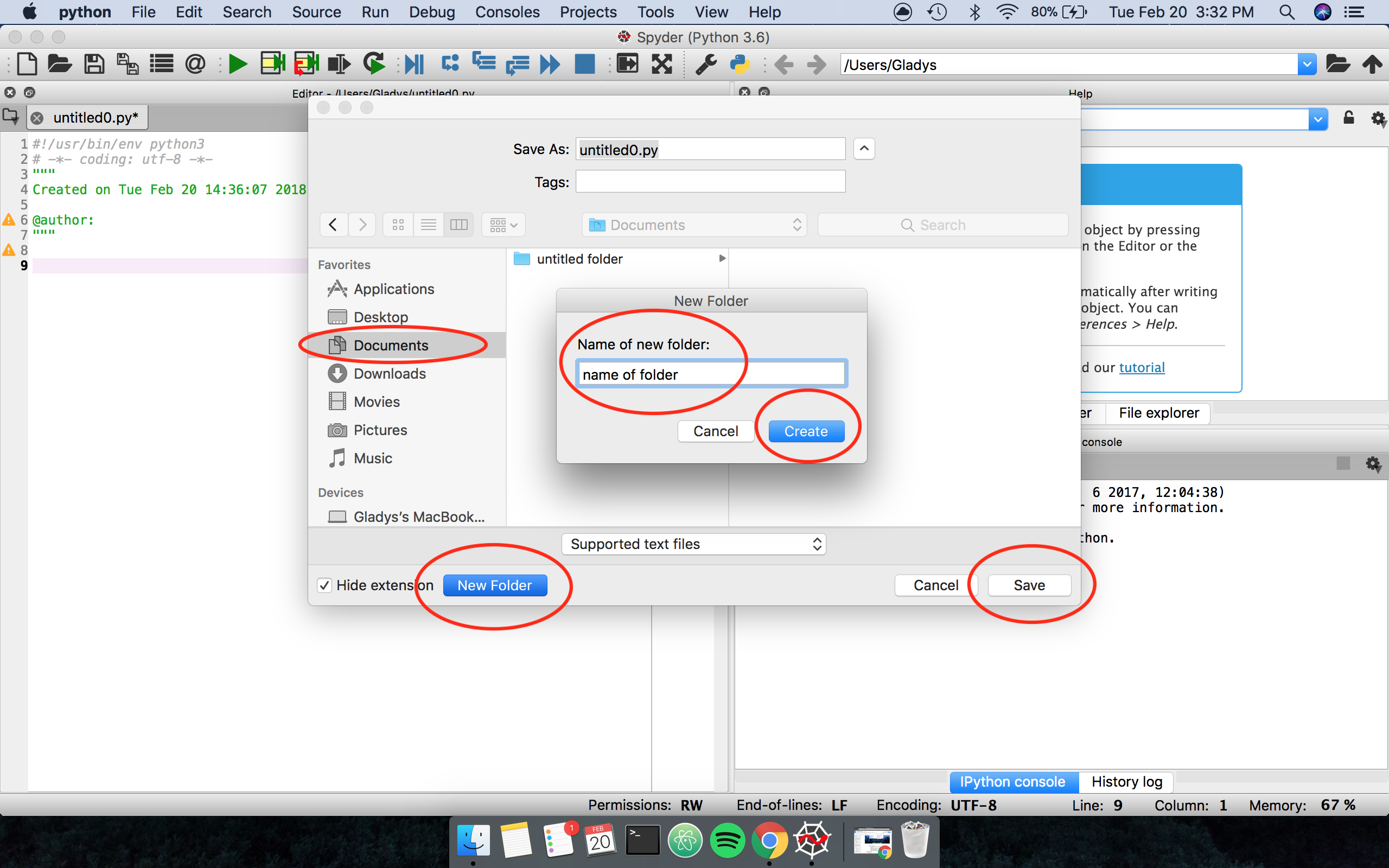
In the popup window, click the New Folder button on the bottom left. Name the folder, and then click the Create button.
Moving files between directories
VLAB
A YouTube video is available if you prefer a visual tutorial.
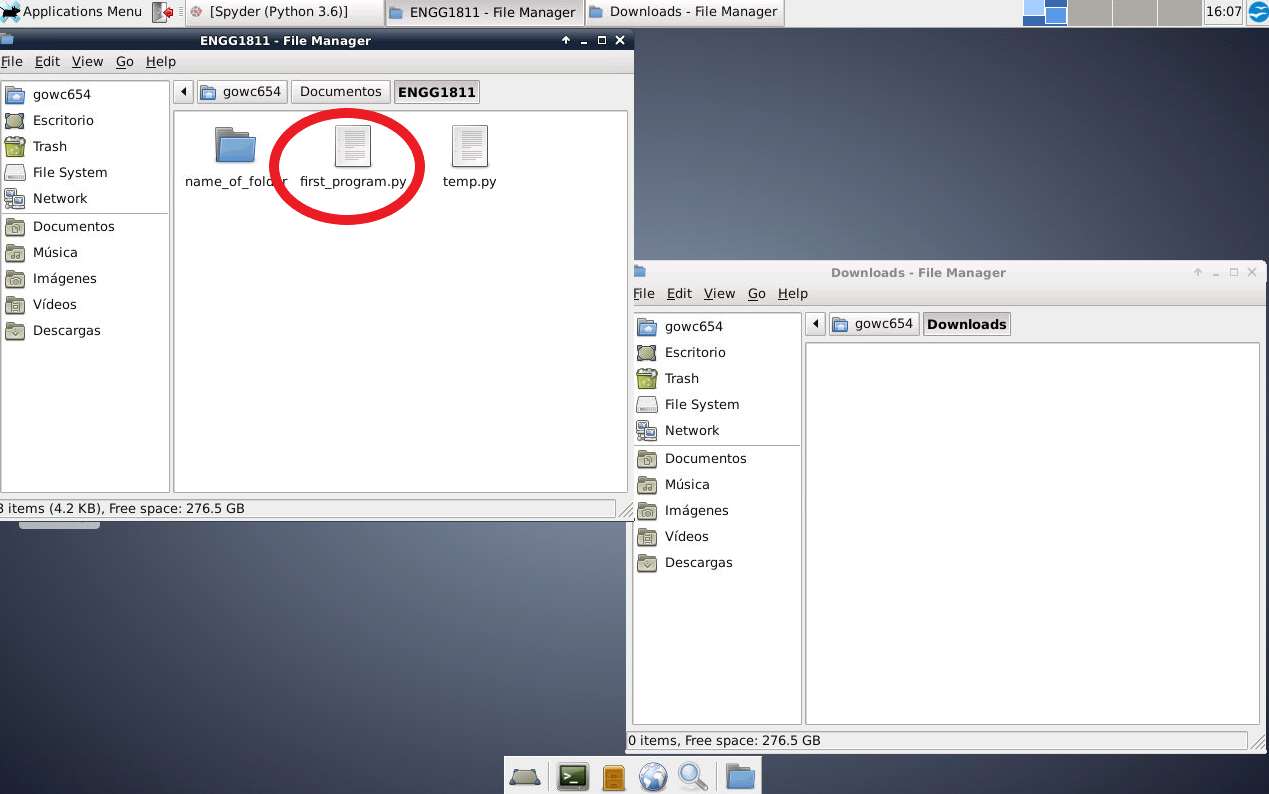
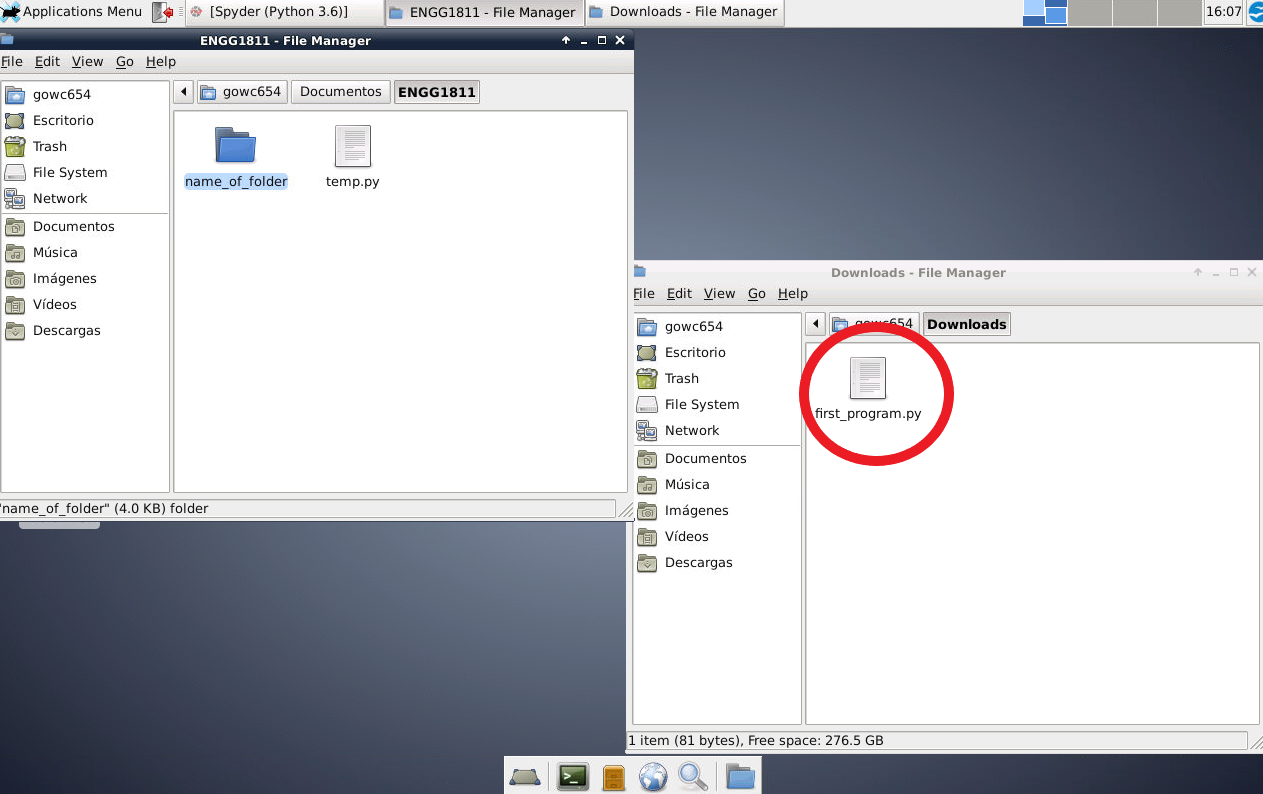
Double click on Home on the desktop twice to open two windows. In one window, navigate to the folder the file you wish to move resides in. In another, navigate to the folder where you wish to move to. Then, drag the file from the source to its destination folder.
Windows
A YouTube video is available if you prefer a visual tutorial.
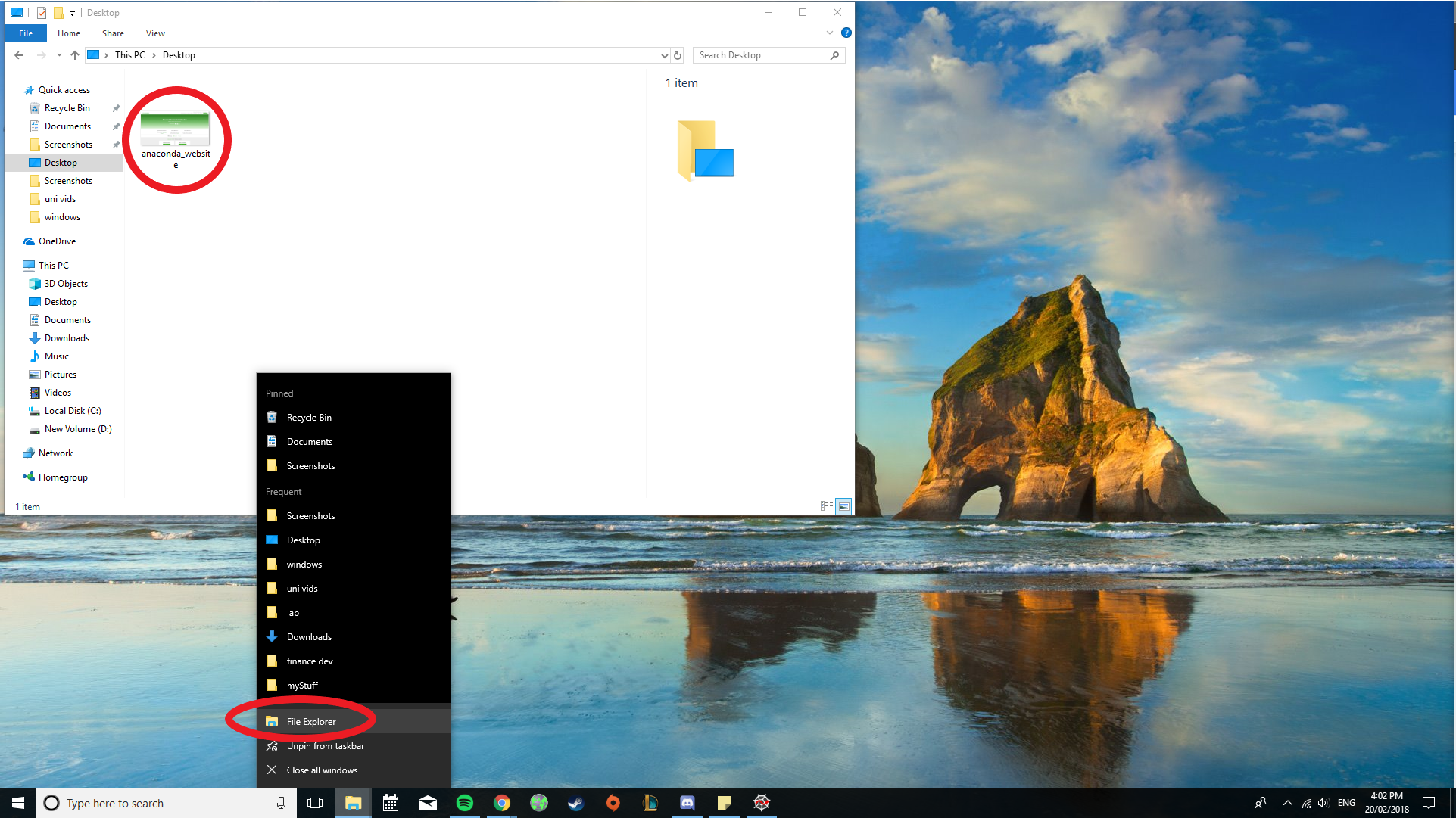
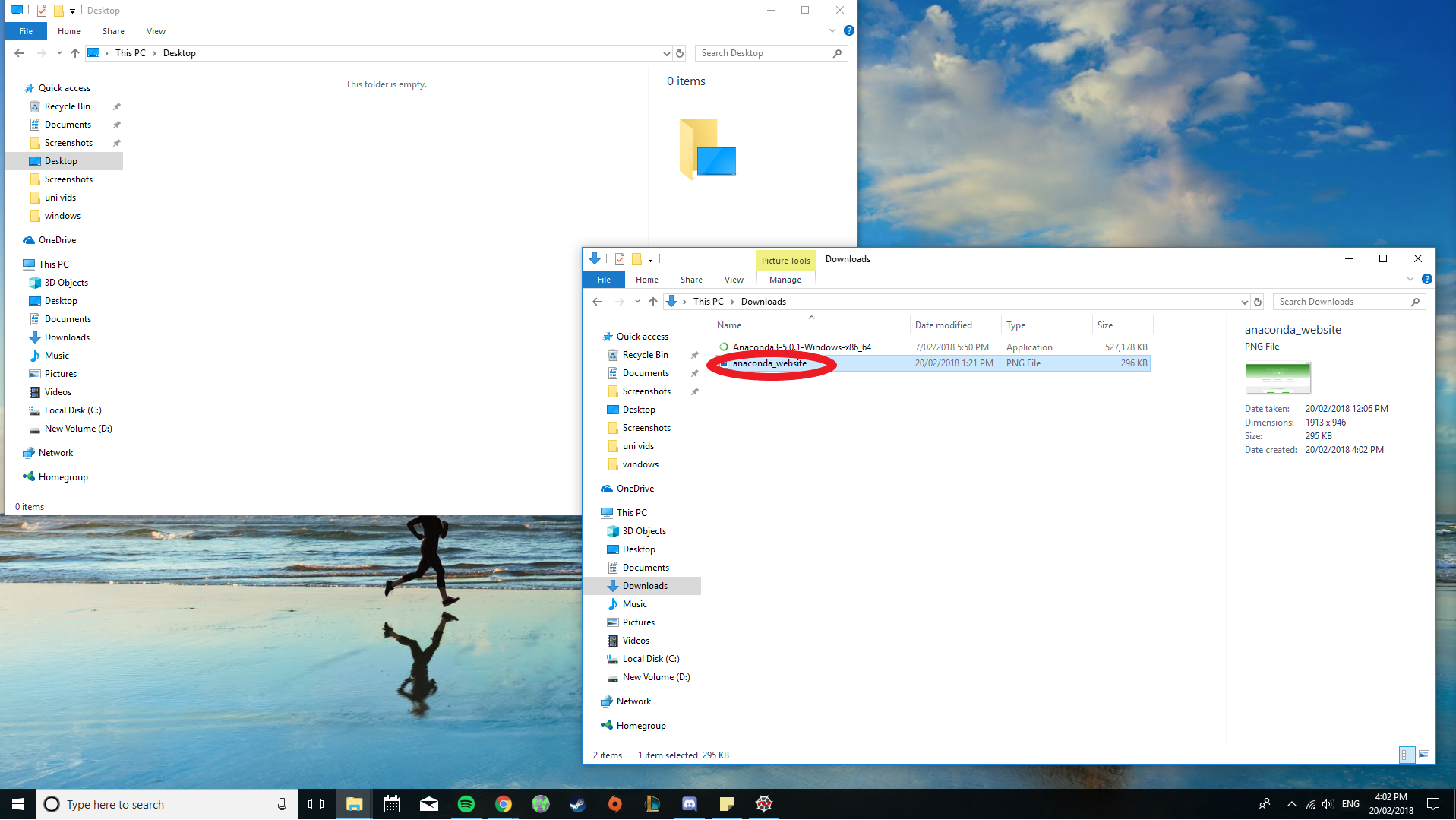
Open File Explorer and navigate to the directory where the file you want to move is located. Right click the File Explorer icon and click File Explorer from the dropdown to open a new File Explorer window. In the new window, navigate to the directory you wish to move the file to.
Drag the file from the directory it is in to the one you want to move it to.
macOS
A YouTube video is available if you prefer a visual tutorial.
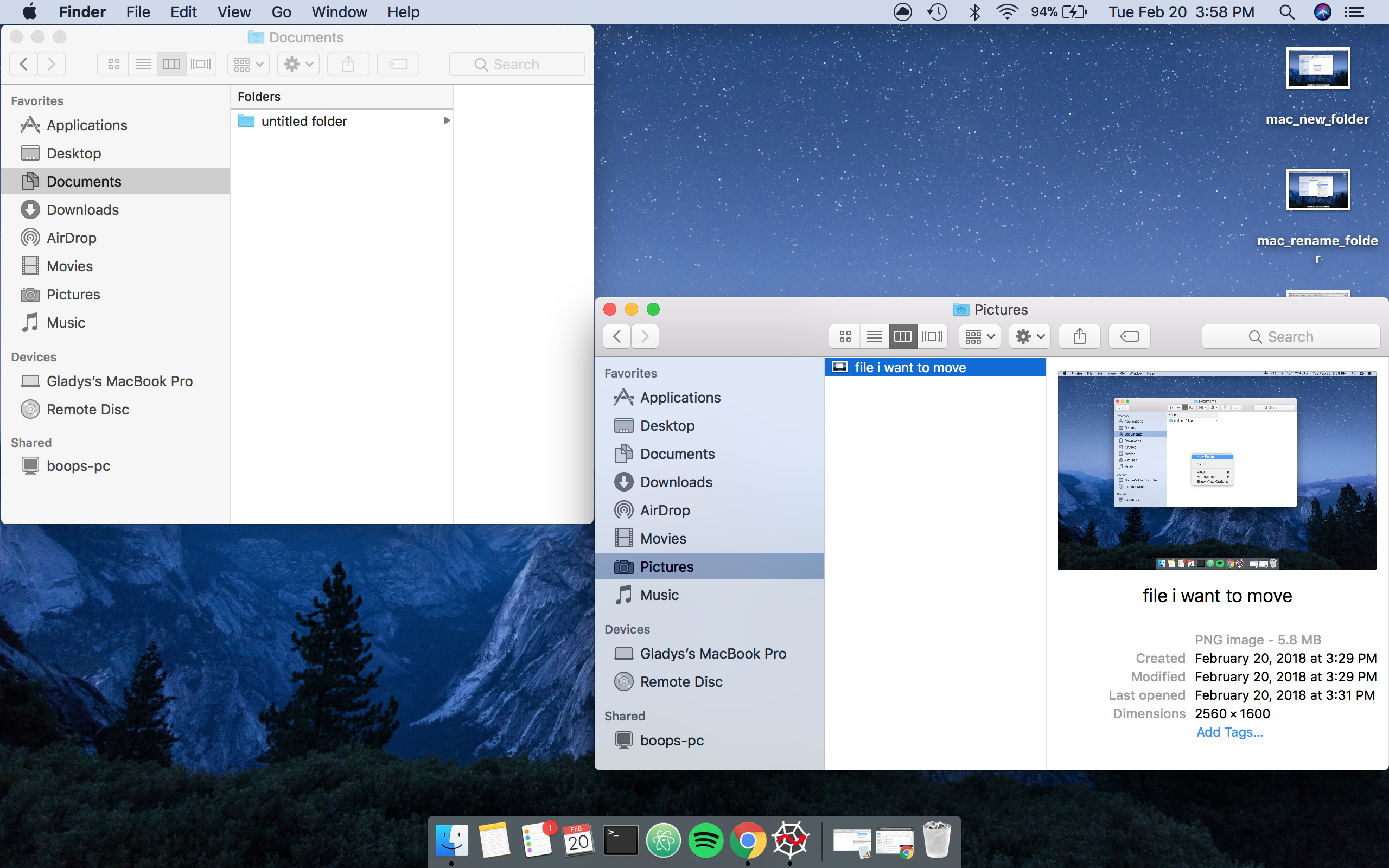
Open Finder and navigate to the directory where the file you want to move is located. Use either Cmd + T or right click on the Finder icon to create a new tab/window.
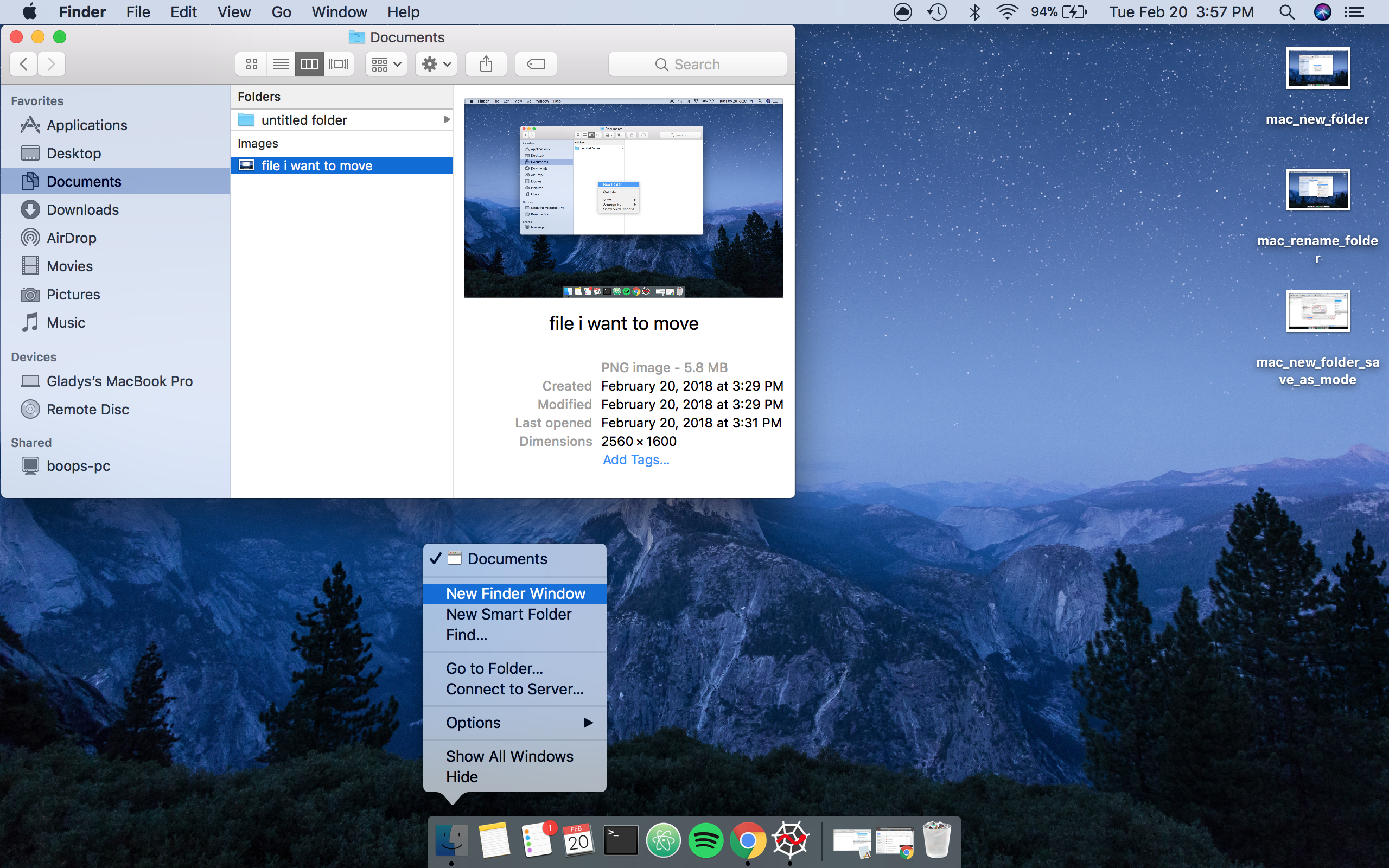
In the new Finder tab/window, navigate to the directory you wish to move the file to. Drag the file from the first directory to the second one.
Unzipping .zip files
VLAB
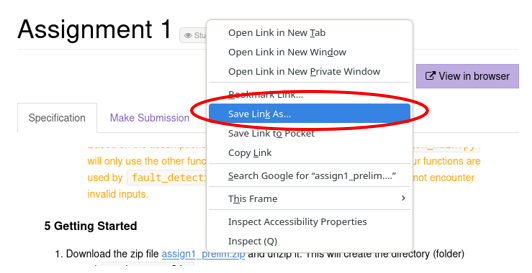
Right click the link and select Save Link As to download the file.
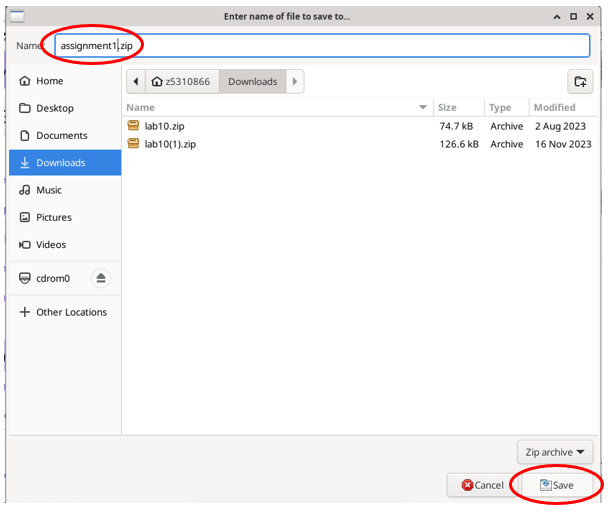
Save the file with your desired filename in the correct folder and click Save.
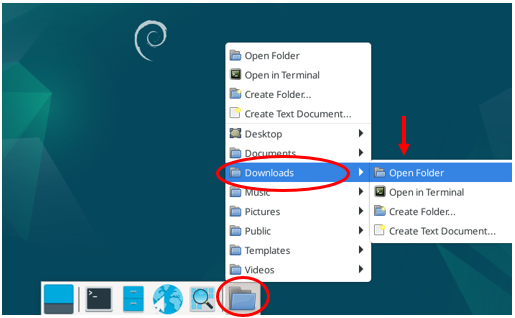
Go back to the desktop and then go to the folder where the file was saved.
Select the ZIP and then click on Extract Here to unzip the file.
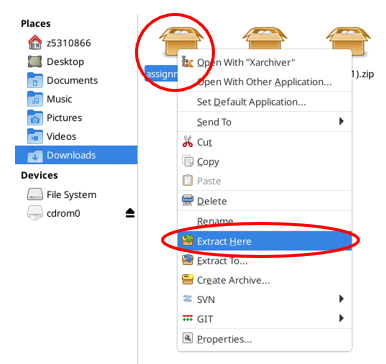
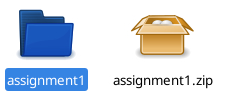
The contents of the ZIP will appear next to the ZIP file. You can now open the file from Spyder directly to view the contents.
Windows
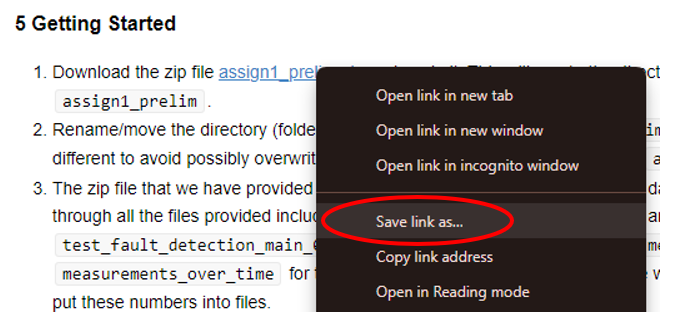
Right click the link and select Save Link As to download the file.
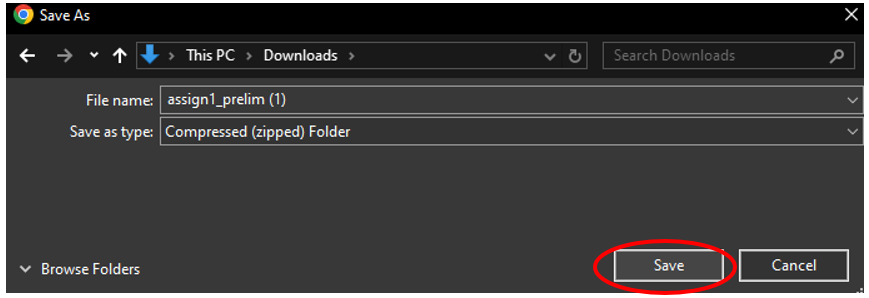
Save the file into your Downloads folder.
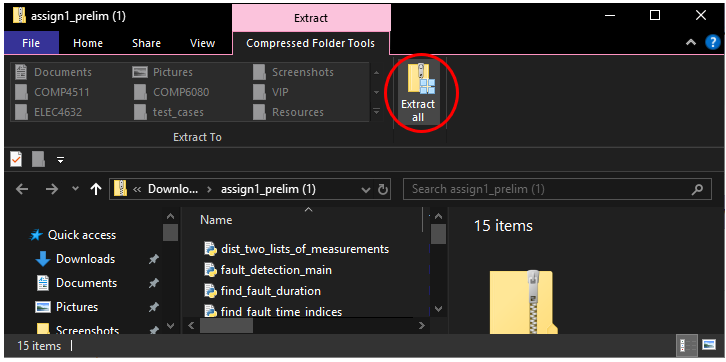
Select the Extract All option in the top bar to unzip the file.
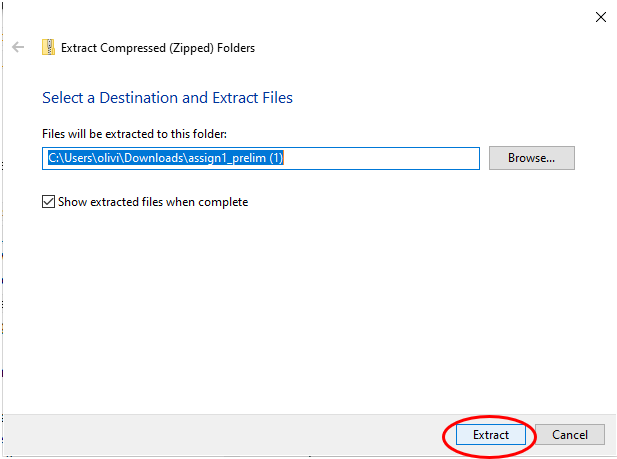
Choose where you would like your files to be saved on your computer.
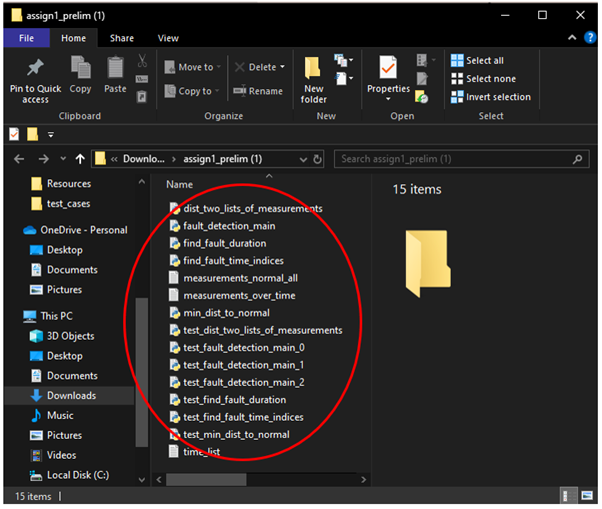
You can now open the file from Spyder directly to view the contents.
macOS
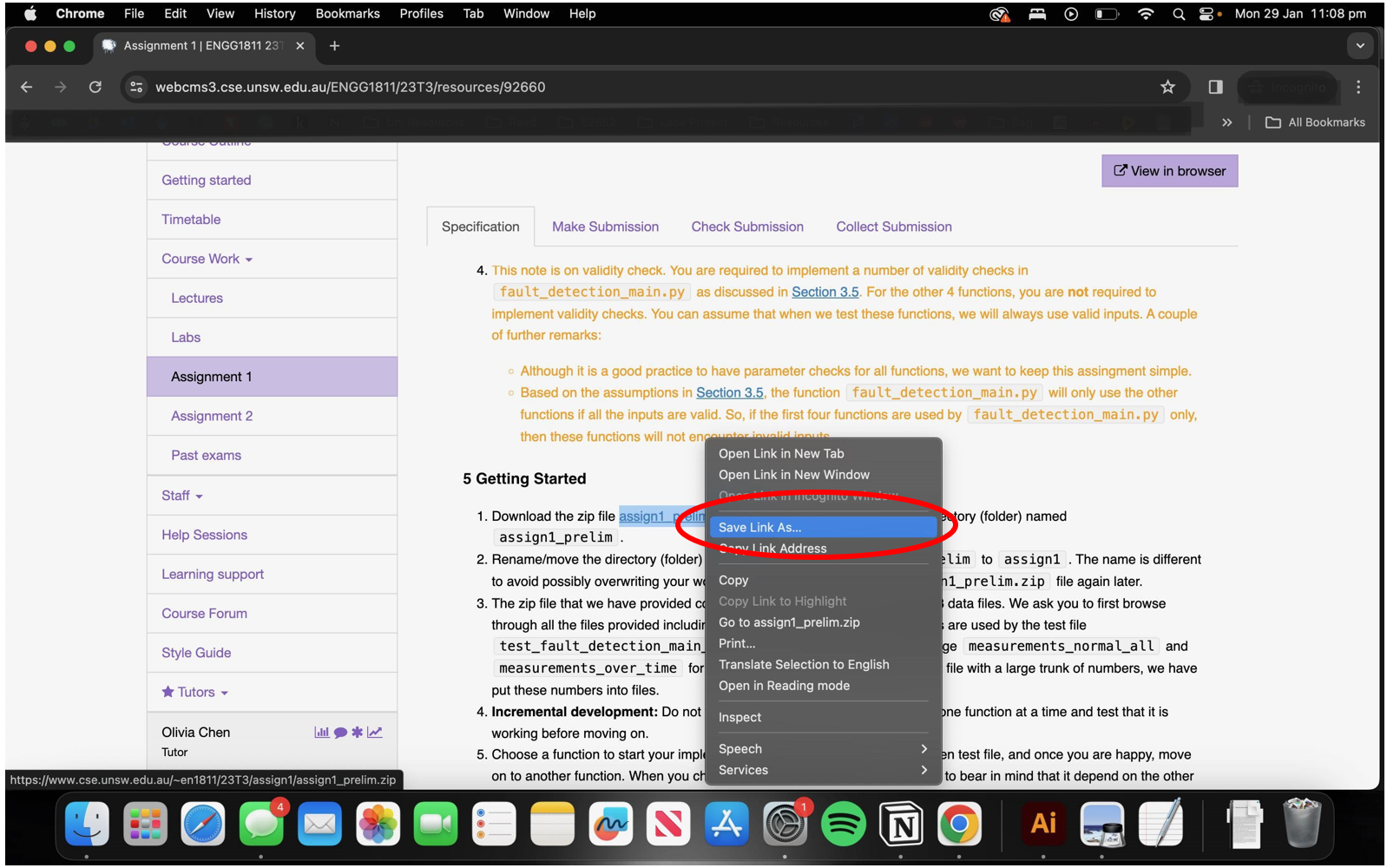
Right click the link and select Save Link As to download the file.
Navigate to your Downloads folder and hover over Open With, then click Archive Utility (default).
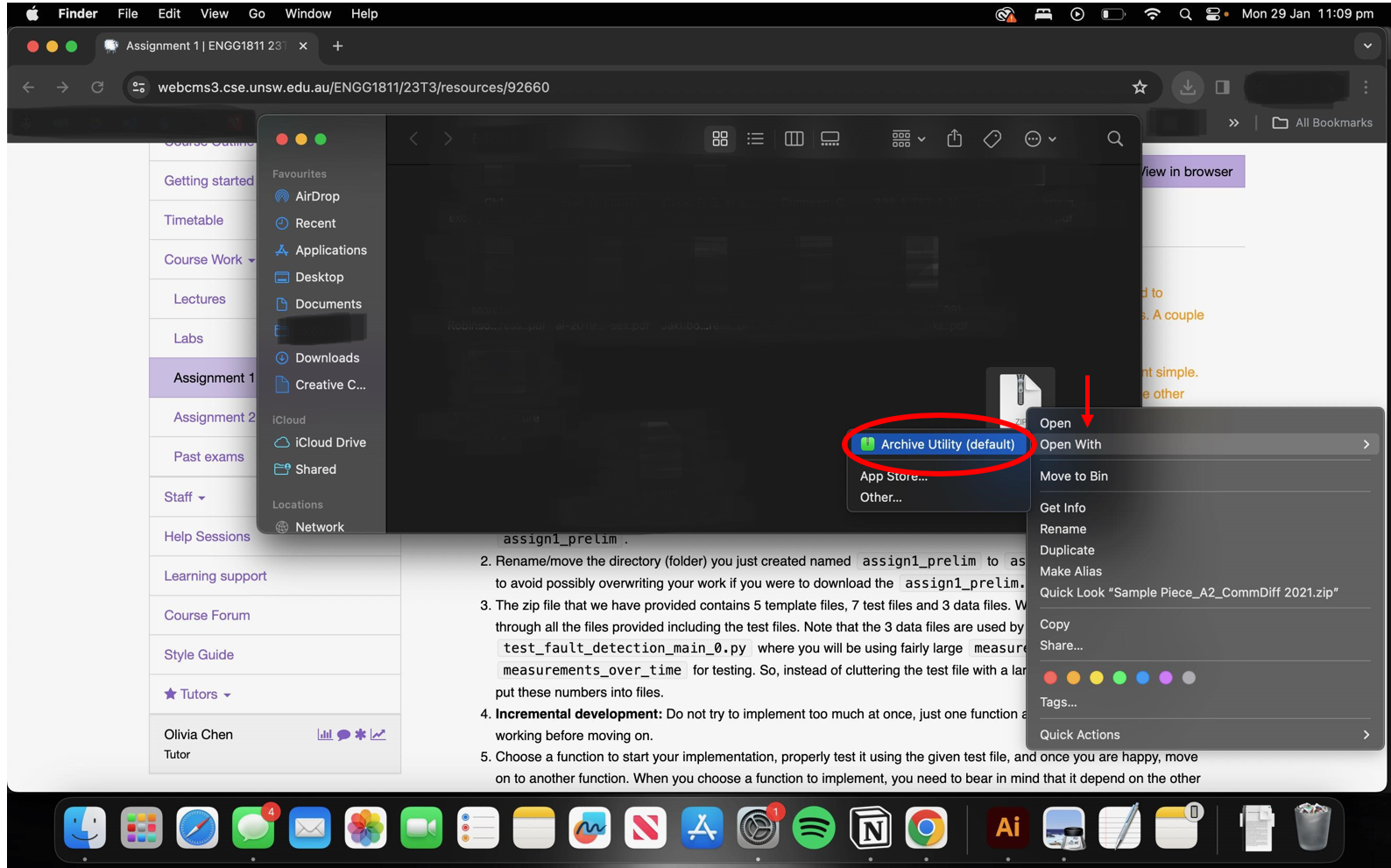
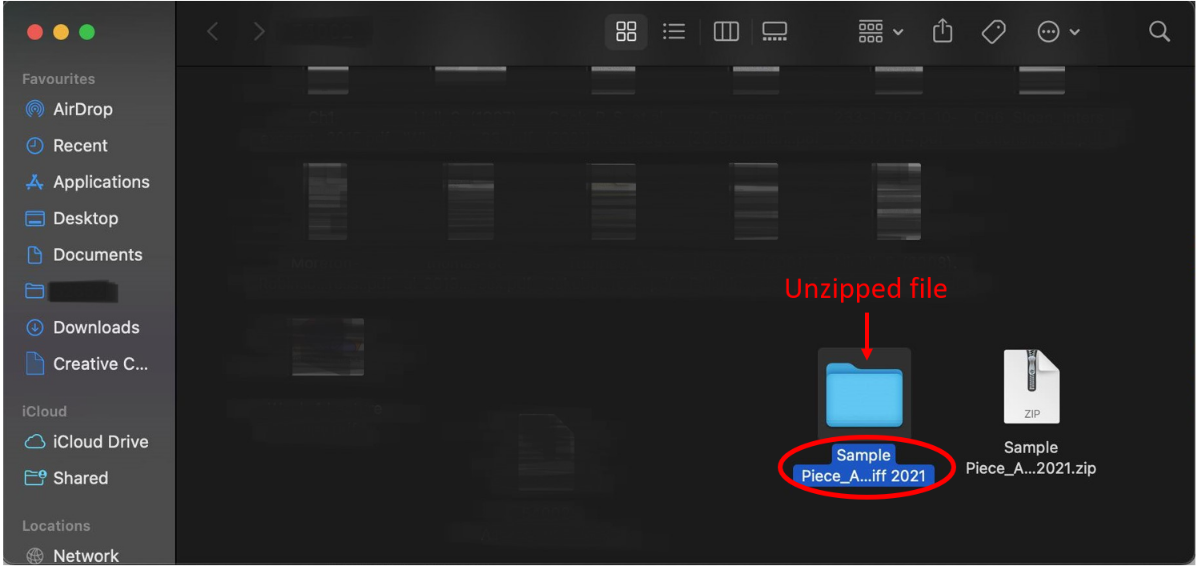
The contents of the ZIP will appear next to the ZIP file. You can now open the file from Spyder directly to view the contents.
Submitting an assignment
From VLAB
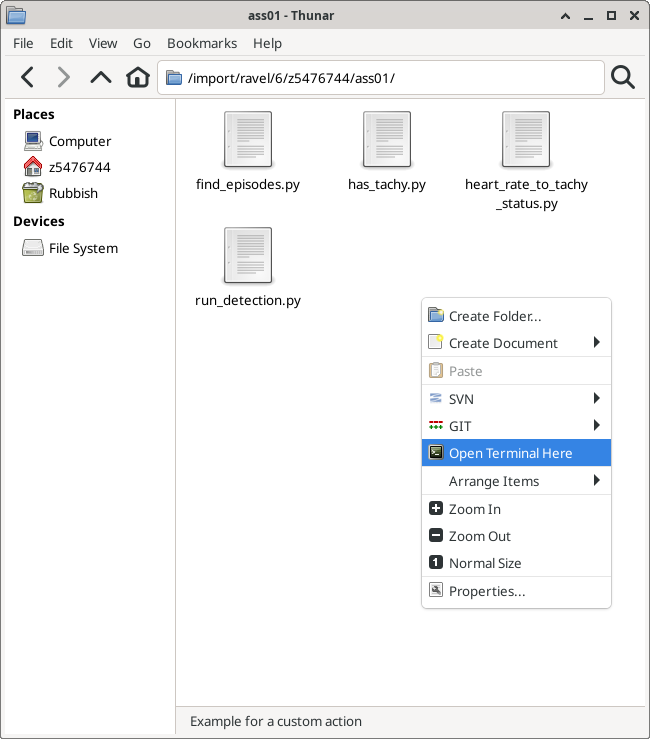
Open a file manager window by double-clicking on Home on the desktop and navigate to the folder where your assignment files are located. Right click on an empty space and select Open Terminal Here.
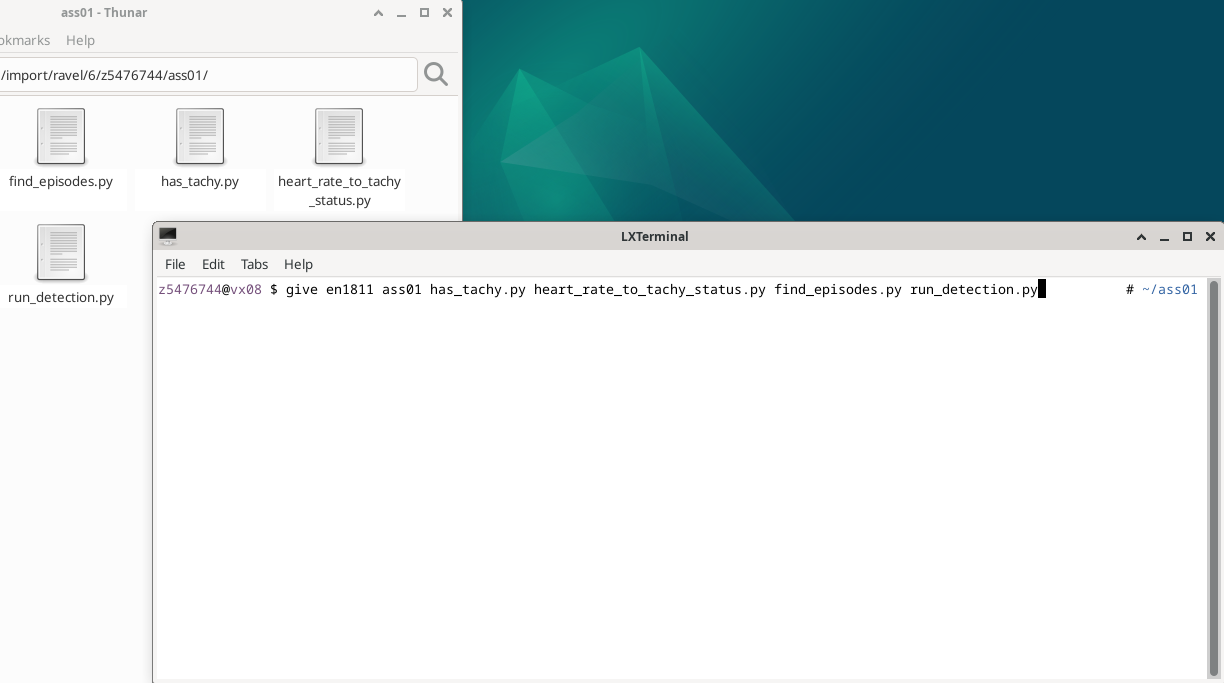
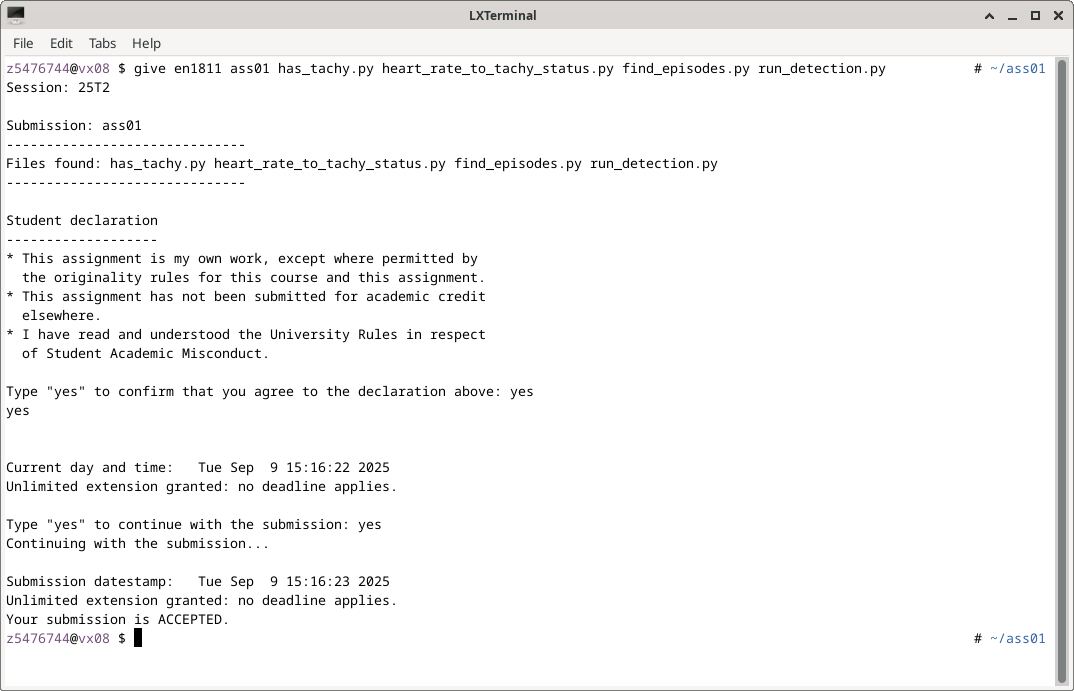
Copy and paste the submission command provided in your assignment specification. I will use the following as an example:
$ give en1811 ass01 has_tachy.py heart_rate_to_tachy_status.py find_episodes.py run_detection.py
Read and respond to the prompts given. If your submission was successful, you will see the following:
From your own machine
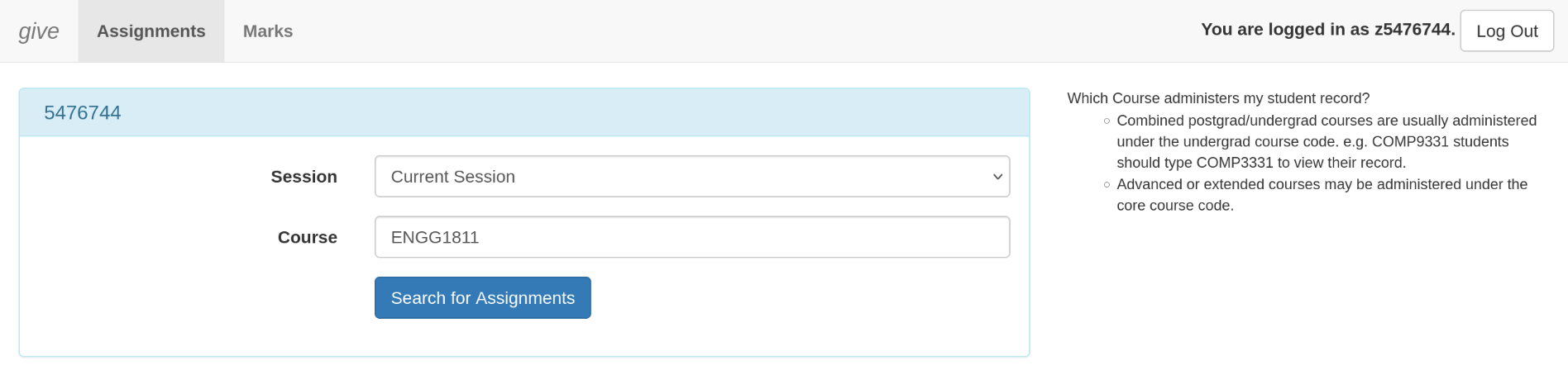
Navigate to give's online web interface (linked in your assignment specification) and login with your zID and zPass. Make sure you have Assignments selected in the top left, then select the current session and use ENGG1811 as the course code to search.
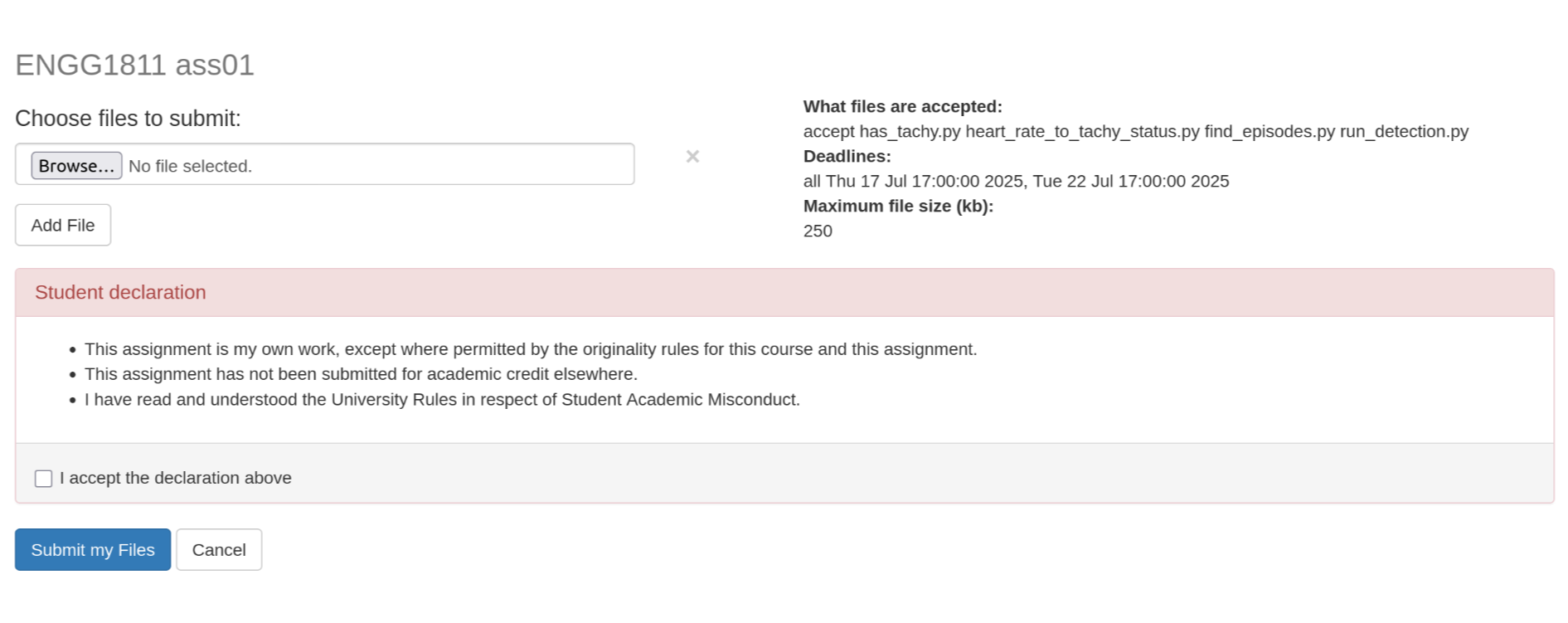
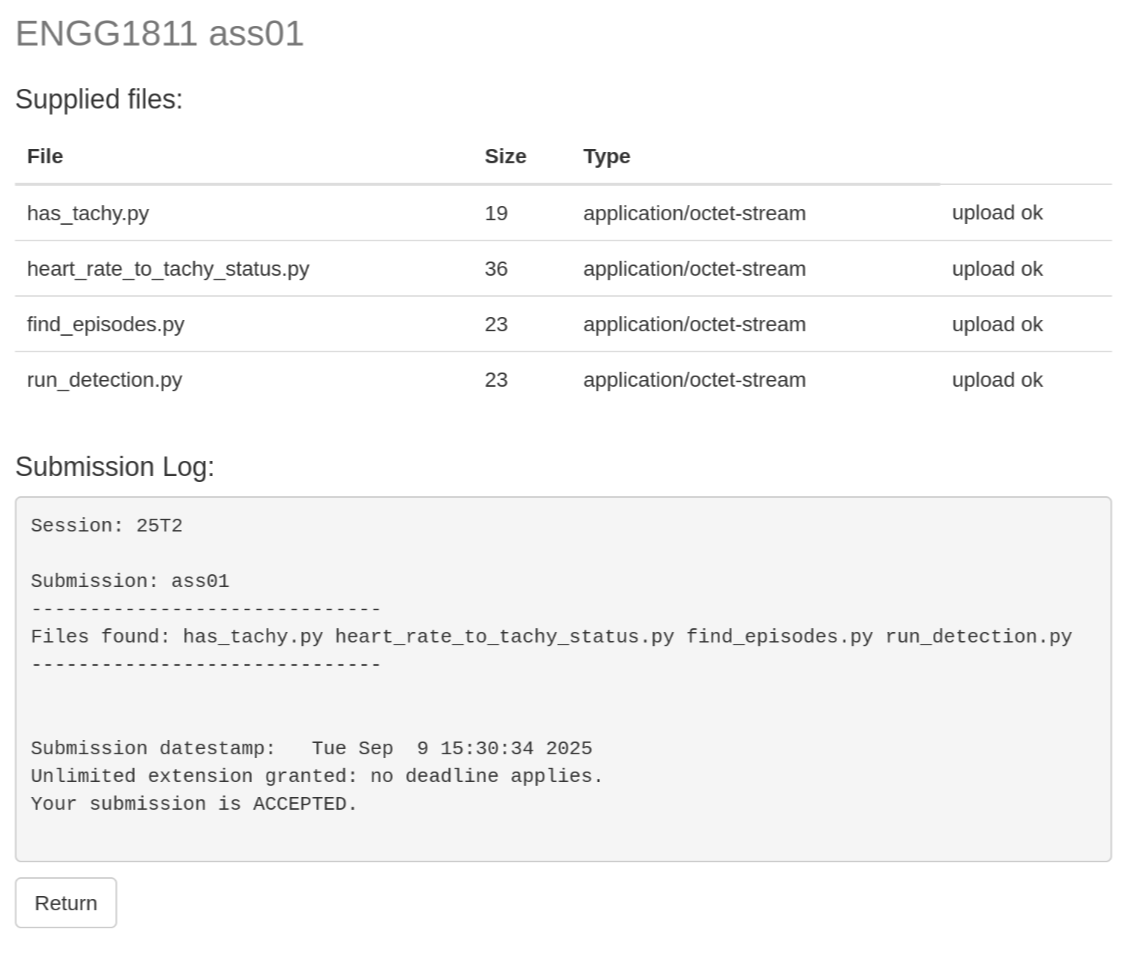
Select the assignment you wish to submit and then click Submit my Assignment. You will see a screen like this:
Click the Browse... button and select an assignment file. Click the Add File button to add more rows for more files.
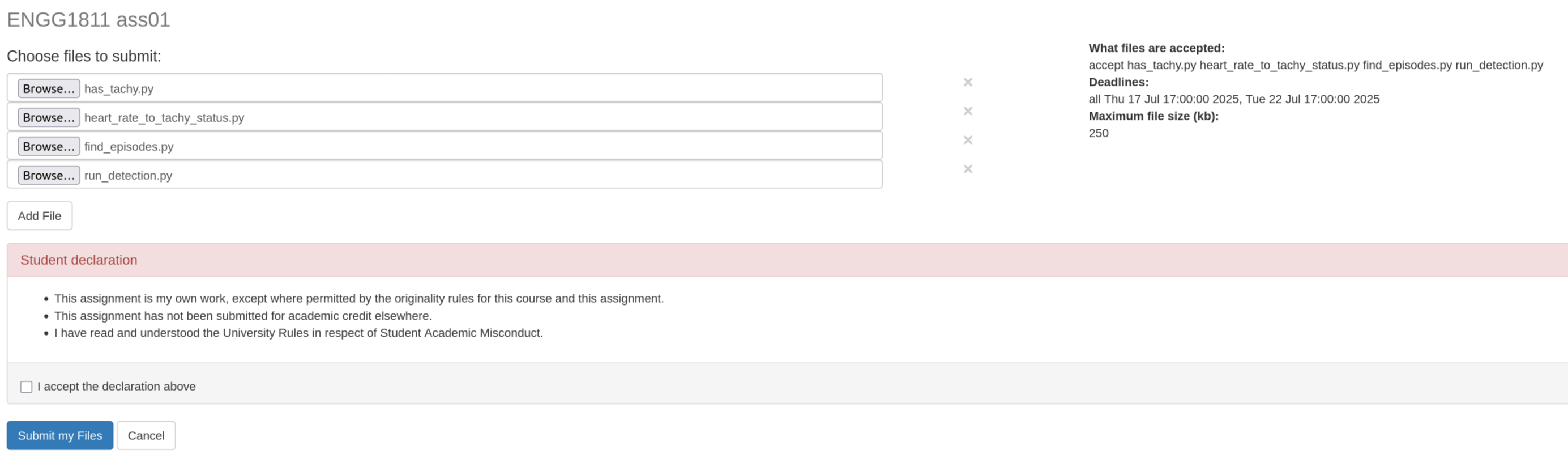
Then, respond to the student declaration and submit. If your submission was successful, you will see the following:
Checking your UNSW email
You can use the website https://student.unsw.edu.au/email to check your email. Enter your username and password to login.
- Your username on UNSW email systems is
zID@ad.unsw.edu.au, i.e.z5555555@ad.unsw.edu.au. - Your password is your zPass.
Connecting to a CSE machine from home
You can find the written CSE taggi guide here. Alternatively, you can watch these pre-recorded videos:
Allowing screen sharing with a Mac on Blackboard Collaborate
If you are unable to select the Share Screen option within Blackboard Collaborate while using a Mac, it may be due to the privacy settings on your computer.
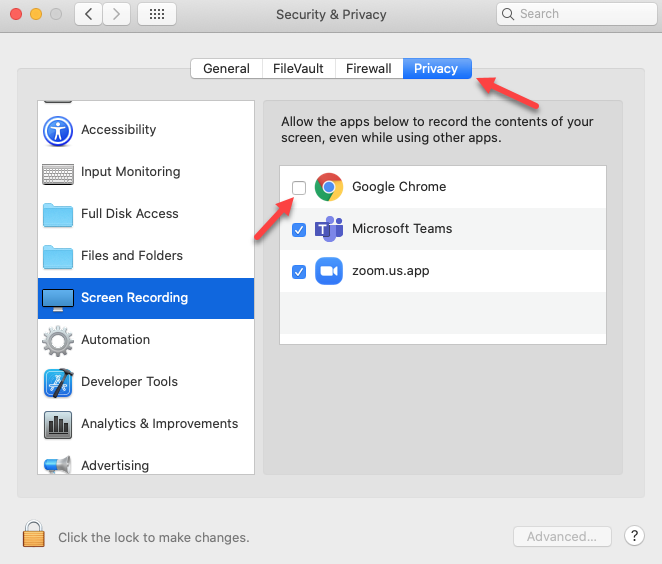
Open System Preferences and select Security and Privacy. On the following screen, select the Privacy tab at the top, then in the left-hand menu select Screen Recording.
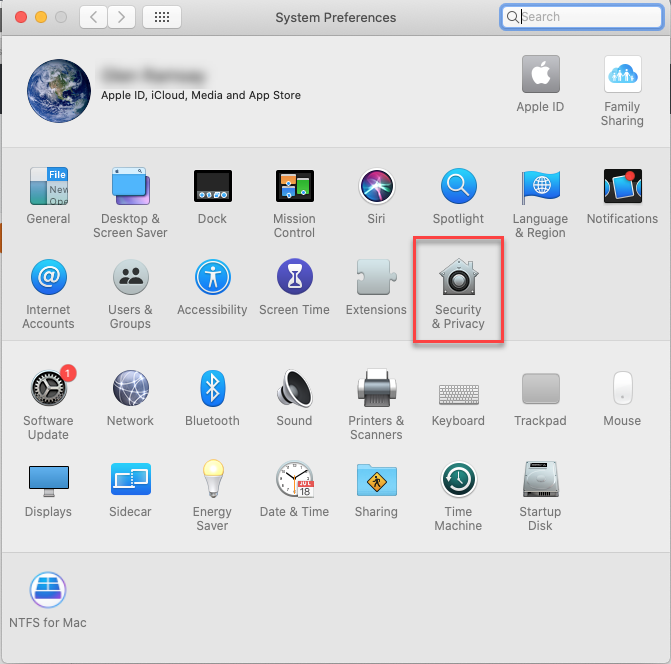
Click the checkbox next to the application that you're using for Blackboard Collaborate (i.e. Google Chrome, Firefox, Safari, etc) and then restart the application. If you cannot click the checkbox, you may need to authorise yourself by clicking the padlock on the bottom left.